Automate Repetitive File Jobs with Workflow Recipes
Chain compress, rename, strip, and zip into a saved Workflow Recipe you run in one click — or let a watched folder run it for you. The four-tool job becomes one pass.
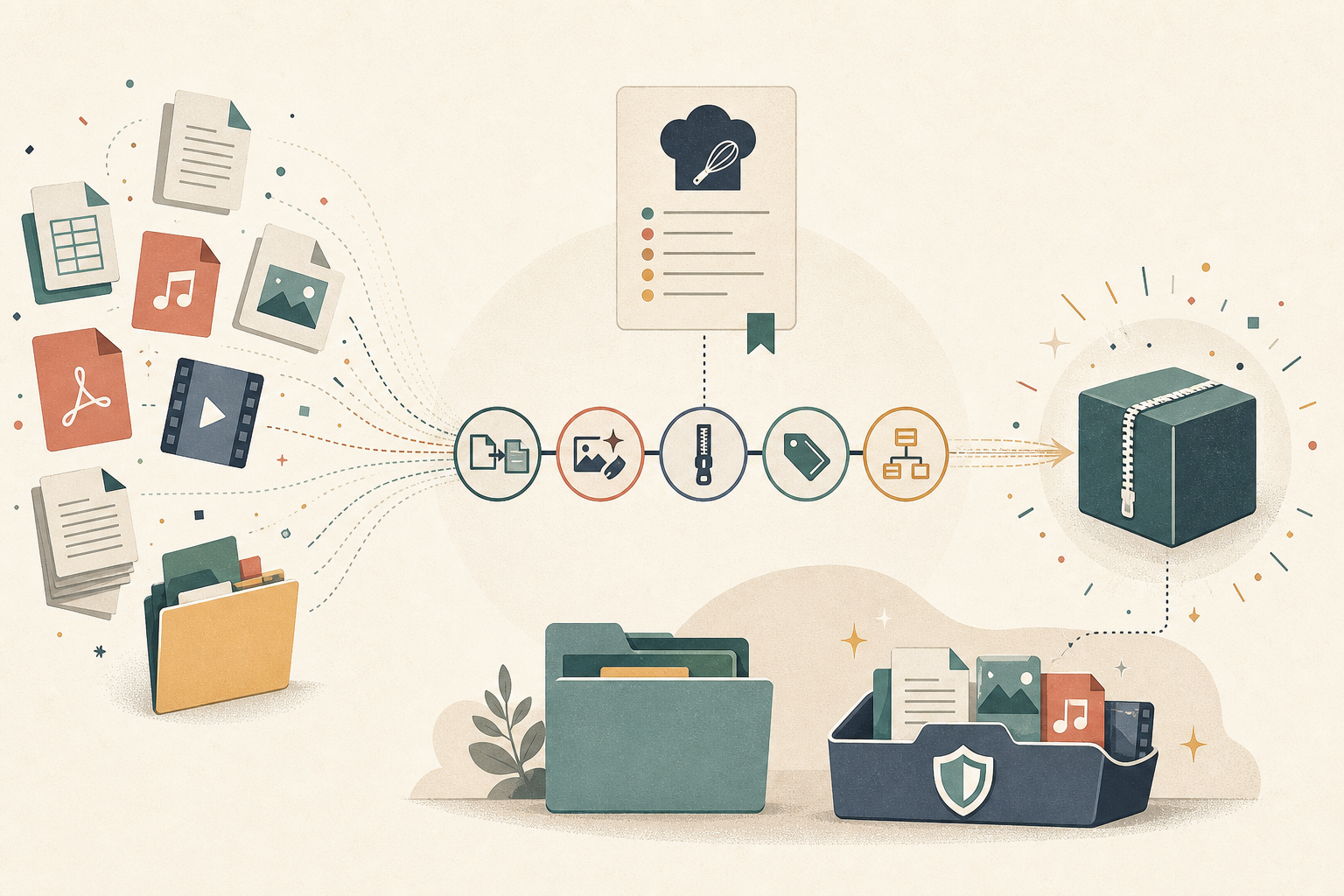
There's a file job you've done so many times you could do it in your sleep. Before every client handoff: compress the images so they're not 12 MB each, strip the metadata so you're not shipping GPS coordinates and camera serials, add a prefix so the filenames are consistent, then zip the whole thing. Four tools, four manual passes, every single time — and if you forget the metadata step, you find out after the files are already on someone else's server.
Doing it once is fine. Doing it three times a week, by hand, for the same kind of job, is the part that wears you down. You're not thinking; you're just clicking the same sequence and hoping you didn't skip a step.
What changed
v1.3.0 adds Workflow Recipes. Instead of running each tool one at a time, you chain the steps into a saved recipe and run the whole sequence in one pass — manually with a click, or automatically when files land in a watched folder. The job you used to do in four trips becomes one.

How it works in practice
Chain the steps once, reuse them forever
Open the Recipes screen and start a New Workflow. Add the steps you'd normally run by hand — Compress Image, Add Prefix, Create ZIP — and each step keeps its own settings, so "Compress Image" remembers it should run at quality 63 and "Create ZIP" remembers the archive name. The steps run top to bottom as a single flow, ending in a "Recipe complete" state. Name it, hit Save, and it's there the next time the same job comes up.
The recipe isn't locked once you build it. Use the plus buttons between steps to drop a new action mid-flow, reorder what you have, or add to the end — the same way you'd rethink the job if you were doing it by hand.
Start from a pack instead of a blank canvas
You don't have to design a recipe from scratch. v1.3.0 ships ready-made templates — Privacy Upload Pack, Image Web Pack, and PDF Delivery Pack — that already encode common jobs. Pick the one closest to what you need, adjust a step or two, and save it as your own. If none fit, start blank and build exactly the chain you want.
Let a folder run it for you
A recipe has three triggers: Manual, Folder, and Timer. Point Folder Monitor at a recipe and a watched folder stops running just one tool on new files — it runs the entire saved chain. Drop a batch of camera exports into the folder and they come out compressed, renamed, stripped, and zipped without you opening the app at all. The repetitive job runs itself.
Mix file types in a single flow
A recipe isn't limited to one kind of file. You can combine image, PDF, video, audio, privacy, rename, and ZIP actions in the same chain, so a real-world job — "compress these photos, flatten that PDF, strip everything, package it" — lives in one recipe instead of three separate tool sessions. Each run saves its final files into a dedicated recipe folder, and you can keep the intermediate files when you need to inspect what each step produced.
See exactly what ran
Every run is logged. The recipe history shows manual runs and Folder Monitor runs side by side, whether each succeeded, the output files it produced, and what each step did. When a watched folder has been quietly processing files for a week, you can look back and confirm it actually did what you set it up to do.
And getting files into a recipe got easier too: v1.3.0 adds Open with 1FileTool, so you can right-click images, PDFs, videos, audio, Word documents, data files, and archives straight from your system file picker. 1FileTool shows the matching tools for what you opened and loads the files directly into the right tool page — no dragging them back into the app first.
Before vs after
| The repeating file job | Before v1.3.0 | With Workflow Recipes |
|---|---|---|
| Compress → rename → strip → zip | Run four tools by hand, every time | Run one saved recipe in a single pass |
| Same job on a new batch | Repeat the whole sequence manually | Drop files in a watched folder; the recipe runs itself |
| Forgetting a step | Find out after delivery | The chain always runs every step in order |
| Standard jobs | Build the steps from memory | Start from Privacy Upload, Image Web, or PDF Delivery packs |
| Knowing it worked | Hope it did | Check per-run history with output files and per-step results |
Who gets the most out of this
- Freelancers and agencies shipping the same kind of deliverable over and over. Build the client-handoff recipe once and stop re-running four tools before every upload.
- Privacy-conscious users. Bake metadata stripping into the recipe so it's never the step you forget — and because 1FileTool runs entirely on your device, the files never leave your machine to do it.
- Anyone with a drop-folder habit. Point Folder Monitor at a recipe and your "exports" or "incoming" folder becomes an automatic processing line.
Try it
Update to v1.3.0, open the Recipes screen, and rebuild your most repetitive file job as a saved recipe — or start from one of the bundled packs. Run it once by hand to confirm the chain, then hand it to Folder Monitor and let the next batch process itself. The job you've done a hundred times by hand is now one you set up once.