Talk to Your Files Using the AI You Already Have Installed
1FileTool now has an AI Chat built in. Attach files or a folder, ask in plain language, and the coding assistant already on your machine answers — your files never upload.

You have a folder open and a question about what's in it. Summarize these twelve meeting notes. Rename this batch of invoices so the dates sort properly. Explain what this config file actually does. Find the three PDFs that mention the renewal clause.
None of those are hard questions. They're just tedious, and the tools that answer them well all want the same thing first: upload everything. So you either paste file contents into a chat window one at a time, or you drag a client contract into a browser tab and hope the retention policy is what the marketing page claimed. Meanwhile there's a perfectly capable AI assistant already installed on your machine — you set it up for coding — sitting in a terminal you'd have to leave your file workspace to reach.
What changed
1FileTool now has an AI Chat built into the workspace. Attach files or point it at a whole folder, ask your question in plain language, and an AI reads them right where they live. The files never move, never upload, and never leave your machine — only your instructions get sent.

This is the mirror image of what shipped in v1.9.0. Back then, AI Access let your coding assistant reach into 1FileTool and run its tools over MCP — your assistant was in charge. Now the workspace is in charge: you stay in 1FileTool, and it drives the assistant on your behalf.

How it works in practice
Attach a few files, or hand over the whole folder
Open AI Chat and you get two ways in: Attach files for a specific set, or Choose a folder when the question is about everything in a directory. Dragging files onto the composer works too. Whatever you attach shows up as a chip above the text box, so you always know exactly what the assistant can see — and you can pull any of them back out with a click before you send.
Then you type the actual request. "Ask anything, or attach files to chat about them…" is the prompt, and it means it: summarize, refactor, explain, rename, or fix.
It uses the AI you already installed
There's no new account, no API key, and no subscription attached to this. AI Chat looks for the coding-agent CLIs already on your computer and talks to those — Claude Code, Grok, Codex, Gemini, Antigravity, OpenCode, Hermes Agent, Cline, Amp, Qwen, and Aider.
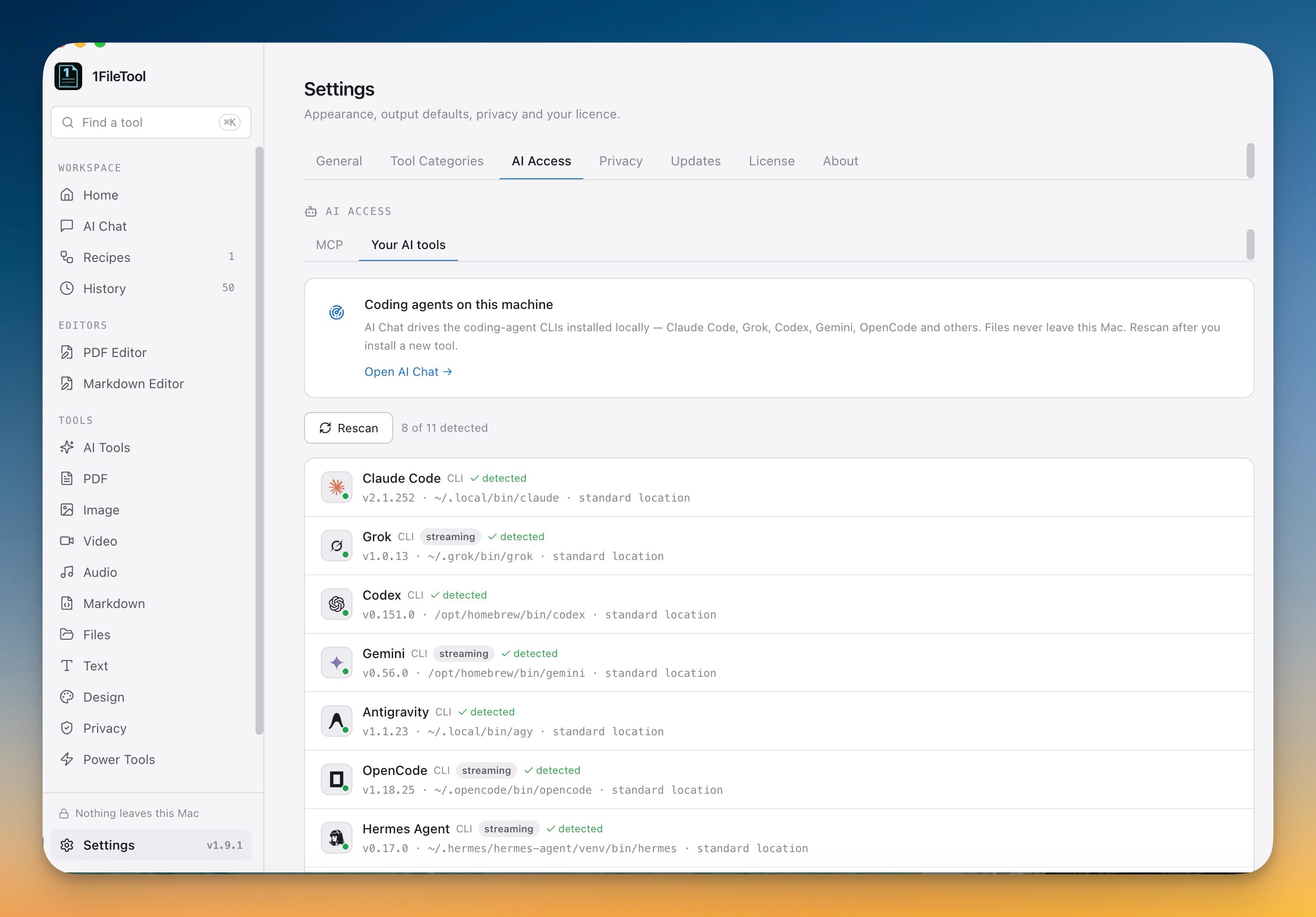
Settings → AI Access → Your AI tools shows what it found, with each agent's version and the path it was located at, plus a count like "8 of 11 detected". Leave the picker on Auto and it uses the first assistant it finds. Or choose one deliberately — and, where the agent offers a choice, pick the model it runs too.
Installed something new? Hit Rescan. Installed nothing at all? There's an Install OpenCode for me button that handles it without a trip to a terminal.
Watch it work, then open what it made
Supported assistants stream their reply as it's written, with a running note of what they're doing, so a long job doesn't look like a frozen window. When the assistant creates, edits, or deletes a file, that file shows up as a card in the reply — with a preview, its size, and two buttons that matter: Reveal Folder and Open with 1FileTool.
That second one is the part that closes the loop. The assistant writes a PDF; you click Open with 1FileTool and you're in the PDF tools with it loaded. File paths mentioned in the reply are clickable for the same reason — a result you can't find is a result you didn't get.
Your chats stay with you
Every conversation is saved in the sidebar with its agent, when it last ran, and how many messages it holds. Reopen one to continue it days later, or delete it. Nothing is stored anywhere but your own machine.
iPhone photos work everywhere now
The other half of this release is smaller and probably overdue. HEIC and HEIF — the format your iPhone shoots in — used to work only in the dedicated converter and error out almost everywhere else.
Now they work across the image tools: compress, resize, convert, crop, rotate, flip, and make icons straight from iPhone photos. You can strip location and camera metadata out of a HEIC before sharing it, and the offline background remover accepts them directly. Type "HEIC" into search and a HEIC to JPG tool comes up immediately.
Two long-standing annoyances went with it: iPhone photos failing to open in most image tools, and photos coming out sideways after you converted them to another format.
Before vs after
| Getting an AI to answer a question about your files | Before | Now |
|---|---|---|
| Getting the files to the AI | Upload to a web tool, or paste contents in by hand | Attach them, or point at the folder |
| Where the files end up | On someone else's server, under their retention policy | Exactly where they already were |
| Which AI you use | Whatever the web tool bundles, on its subscription | The assistant already installed on your machine |
| Finding what it produced | Hunt through Downloads for the output | A result card with Reveal Folder and Open with 1FileTool |
| Picking up an old thread | Scroll back through a browser tab | Saved in the sidebar, ready to continue |
Who gets the most out of it
If you work with documents you can't upload — contracts, medical records, anything under NDA — this is the difference between using an AI on them and not. The instruction leaves; the document doesn't.
If you already live in a coding assistant, you've paid for it and configured it. AI Chat just points it at your files without you switching windows or explaining the folder structure again.
If you process photos from an iPhone, the HEIC work means you stop converting to JPG first as a workaround before every other operation.
Try it
Update to 1.10.0, open AI Chat in the sidebar, and attach the folder you've been meaning to sort out. If you already have a coding assistant installed, there's nothing to configure — it's detected and ready. If you don't, one button installs one for you.
The question you've been avoiding because it wasn't worth the upload is now worth asking.
From across the StoicSoft network
Hand-curated reads on the same topic from sister sites in the StoicSoft family.
- 1DevTool7 min read
Toolbelt for AI agents: 1DevTool gives Claude, Codex, and friends HTTP and database tools
v1.18.6 adds two MCP servers that hand AI agents the tools they kept asking you to use for them: a `request` tool for HTTP through your project's auth and environment, and a `1devtool-database` server for queries that respect safe mode without exposing credentials.
Read on 1devtool.com 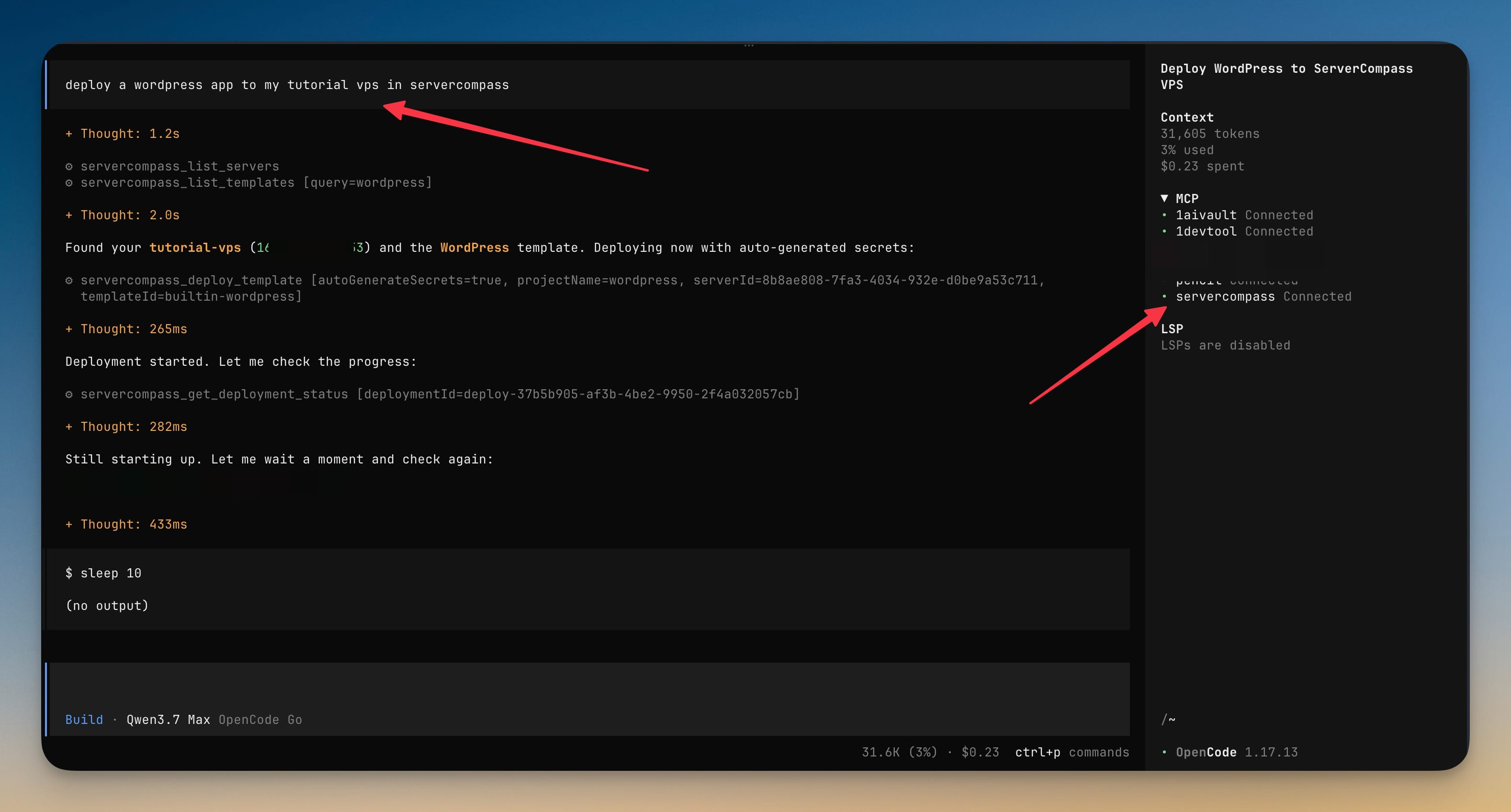 ServerCompass6 min read
Give Coding Agents Scoped Access to Your VPS
Server Compass v1.28.0 adds AI Access, a local token-secured MCP connection that lets coding agents inspect and operate your VPS through scoped permissions instead of raw SSH credentials.
Read on servercompass.app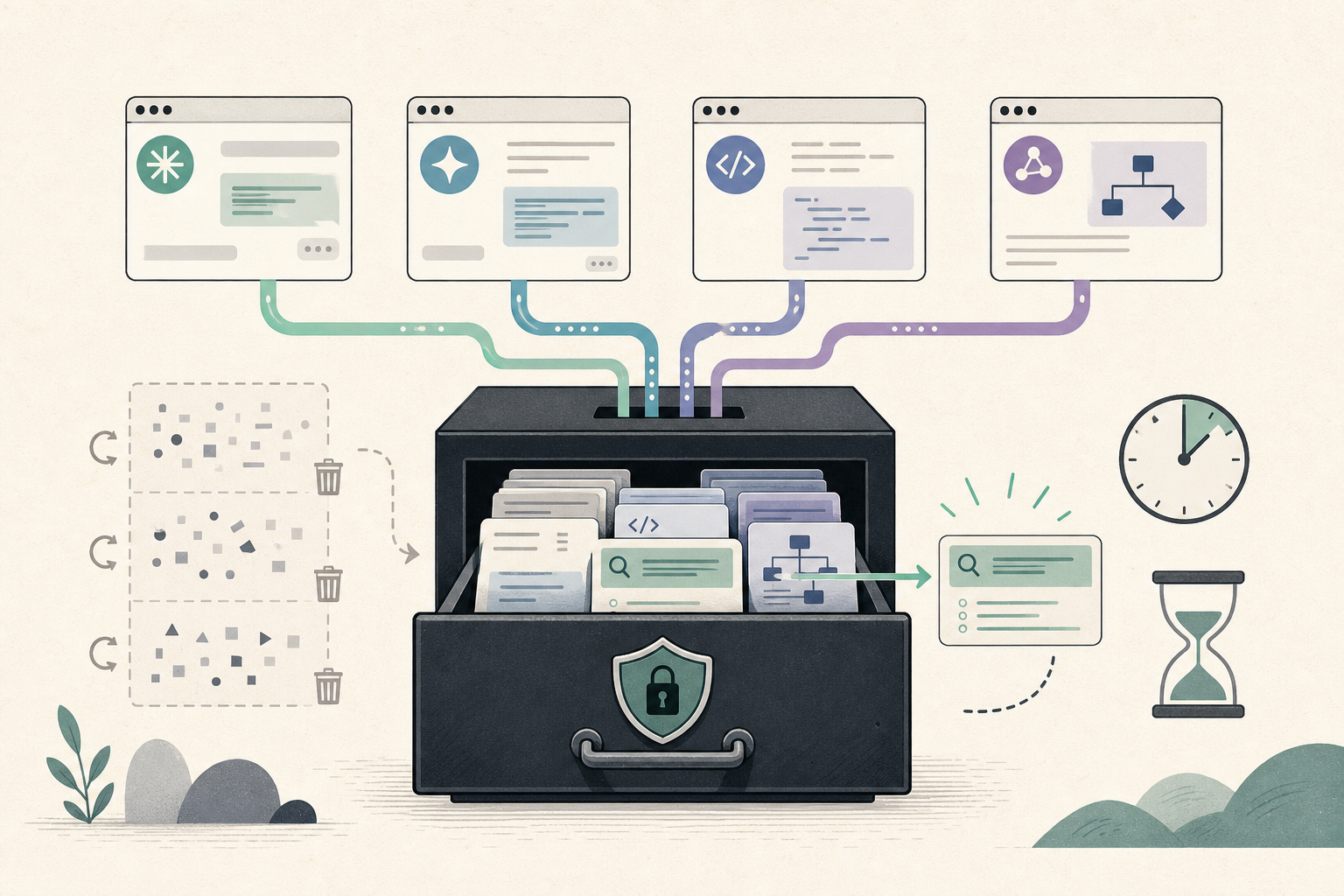 1AIVault6 min read
Stop rebuilding context every time you switch AI tools
Save context once and every AI tool — Claude Desktop, Claude Code, Cursor, Cline, Codex — can read it through a single MCP connection. 1AIVault v1.0.0 ships your portable, local-first AI memory vault.
Read on 1aivault.com