Star Your Favorite Tools — and One Tool Now Handles One File or Fifty
Pin the tools you use most to your Home dashboard, and skip the single-versus-batch guessing game — every tool now takes one file or a whole folder, with a tidier list and tabbed settings.
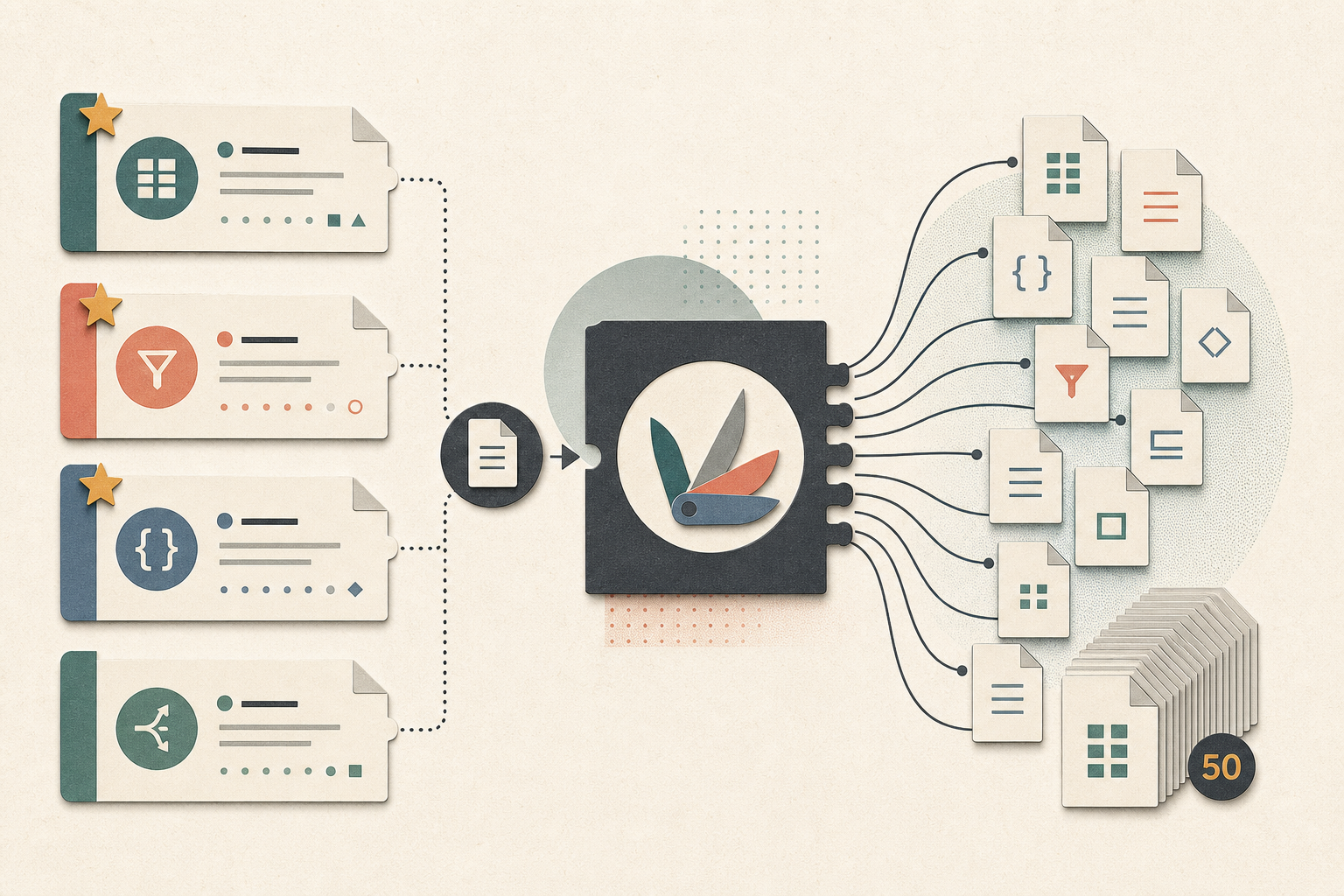
1FileTool ships with hundreds of tools, which is wonderful right up until you need the same three every single day. Then it's a small tax: open the app, scroll the sidebar, find Compress, do the thing, repeat tomorrow. The tools you reach for constantly are buried at the same depth as the ones you've used once.
And there was a second, quieter friction. For a lot of jobs you had to remember which version you wanted — "Compress Image" for one file, or "Batch Compress Images" for several? Two separate tools, two separate pages, for what is really the same task at a different scale.
This release clears both of those out of the way.
What changed
You can now favorite any tool so it sits on your Home dashboard, one click from anywhere. And the separate single-file and batch versions of each tool have merged into one tool that handles either — drop in one file or fifty, same place.
How it works in practice
Pin the tools you actually use
Every tool page now has a Favorite button sitting right above the drop zone. Star a tool and it appears on your Home dashboard, so the handful you use constantly — Compress, Merge PDF, whatever yours happen to be — are waiting for you the moment you open the app, instead of one more scroll away.
Changed your mind? Unfavorite from the tool page, or click the X on the dashboard card. Your dashboard stays a reflection of how you actually work, not a list you set up once and forgot.
One tool for one file — or fifty
The biggest cleanup is the end of the "batch" twin. There's no longer a separate Compress Image and Batch Compress Images — there's just Compress, and it takes one file or a whole pile without you choosing a mode first.
The same thinking runs through the rest of the app:
- Convert replaces the old maze of one-format-each converters — JPG to PNG, PNG to JPG, WebP to JPG, and the rest — with a single converter that figures out what you're doing.
- Resize and Watermark follow the same one-tool pattern.
- And it's not just images: PDF, Video, Audio, and File tools got the same unification.
The upshot is a shorter, easier-to-scan tool list — 37 image tools trimmed to 26, 25 video tools down to 23, with similar cleanups across every category. If you've bookmarked a tool that no longer exists under its old name, don't worry: old links automatically redirect to the new unified tool.
Settings you can actually navigate
Settings is now organized into tabs — General, Tool Categories, Privacy & Security, License, and About — so finding the one toggle you came for doesn't mean scrolling past everything else. And a one-click settings button now lives in the output options bar, so you can jump straight to the right tab from anywhere in the app.
Set your preferences first, then review your files
The order of every tool page got a small but meaningful tweak: the file list now appears after the output options, so you decide how you want the result — format, quality, where it saves — before you start dropping files in. It reads top to bottom the way the job actually happens. "Replace source" now defaults on for new users, matching the most common workflow out of the box, while anyone who wants to keep both copies can flip it off in Settings. Tool cards also pick up proper keyboard support — Enter and Space activate them, with ARIA labels for screen readers — so you can drive the whole app without reaching for the mouse.
New: Markdown to HTML
There's also a new file tool in the mix — Markdown to HTML turns a Markdown file into a clean HTML page, ready to publish or preview.
Before vs after
| Before | Now |
|---|---|
| Scroll the sidebar to find your go-to tools every time | Star them once; they live on your Home dashboard |
| Pick between "Compress" and "Batch Compress" | One Compress tool takes one file or fifty |
| A separate converter for every format pair | One Convert tool handles them all |
| A long, redundant tool list to scan | A shorter, deduplicated list per category |
| Settings as one long scroll | Settings split into clear tabs |
Who benefits most
Daily drivers. If you open 1FileTool for the same two or three jobs, favorites turn every session into a single click instead of a hunt.
Anyone who works in batches. No more second-guessing which version of a tool to open — the one tool scales from a single file to a full folder on its own.
People who like a tidy workspace. Fewer near-duplicate tools and tab-organized settings mean less to wade through and more room to just get the job done.
Try it
Open any tool, hit the star above the drop zone, and watch it land on your Home dashboard. Then try dropping a whole folder into a tool you used to run one file at a time. Same tools, far less friction.
Download 1FileTool at 1filetool.com.
From across the StoicSoft network
Hand-curated reads on the same topic from sister sites in the StoicSoft family.
 1DesignTool5 min read
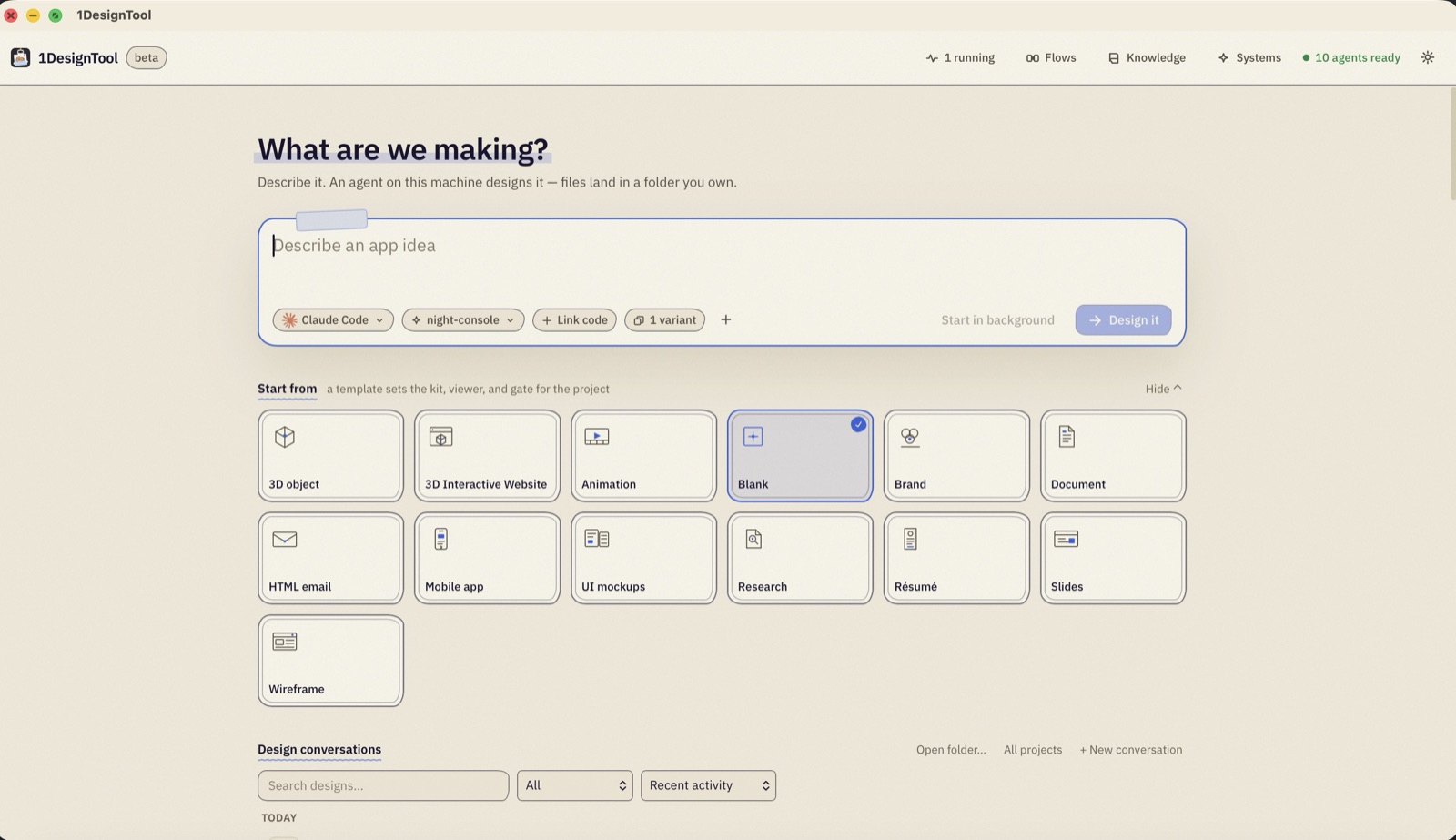
Inside a run: one sentence in, a folder you own out
A walkthrough of a single 1DesignTool run — the four decisions in the prompt box, the two panes you watch it in, and the files it leaves on your disk when it is done.
Read on 1designtool.com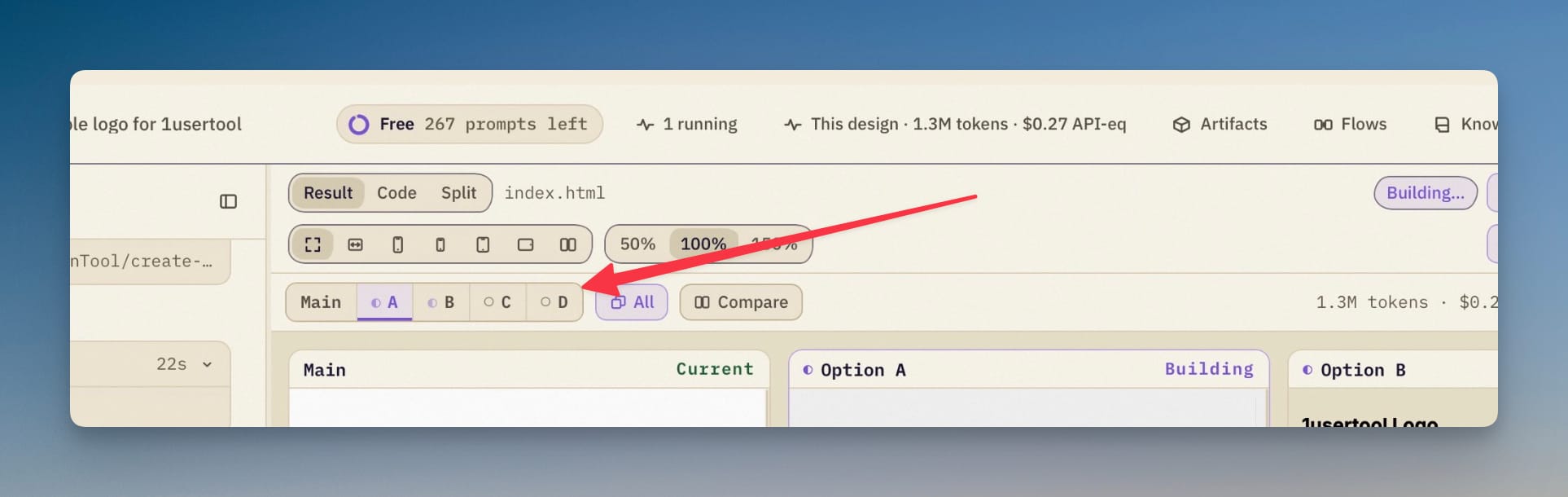 1DesignTool7 min read
Watch Four Options Build Without Leaving the Design
Options no longer live on a screen of their own. A strip under the result panel switches between Main and each option, a building one is watchable live, and every turn now reports the tokens, cost and time it actually spent.
Read on 1designtool.com