Watch Any Folder. Process Files as They Arrive.
The Folder Monitor watches any folder and automatically applies a tool to every new file — compress, convert, strip metadata — in the background, without you having to touch the tool each time.
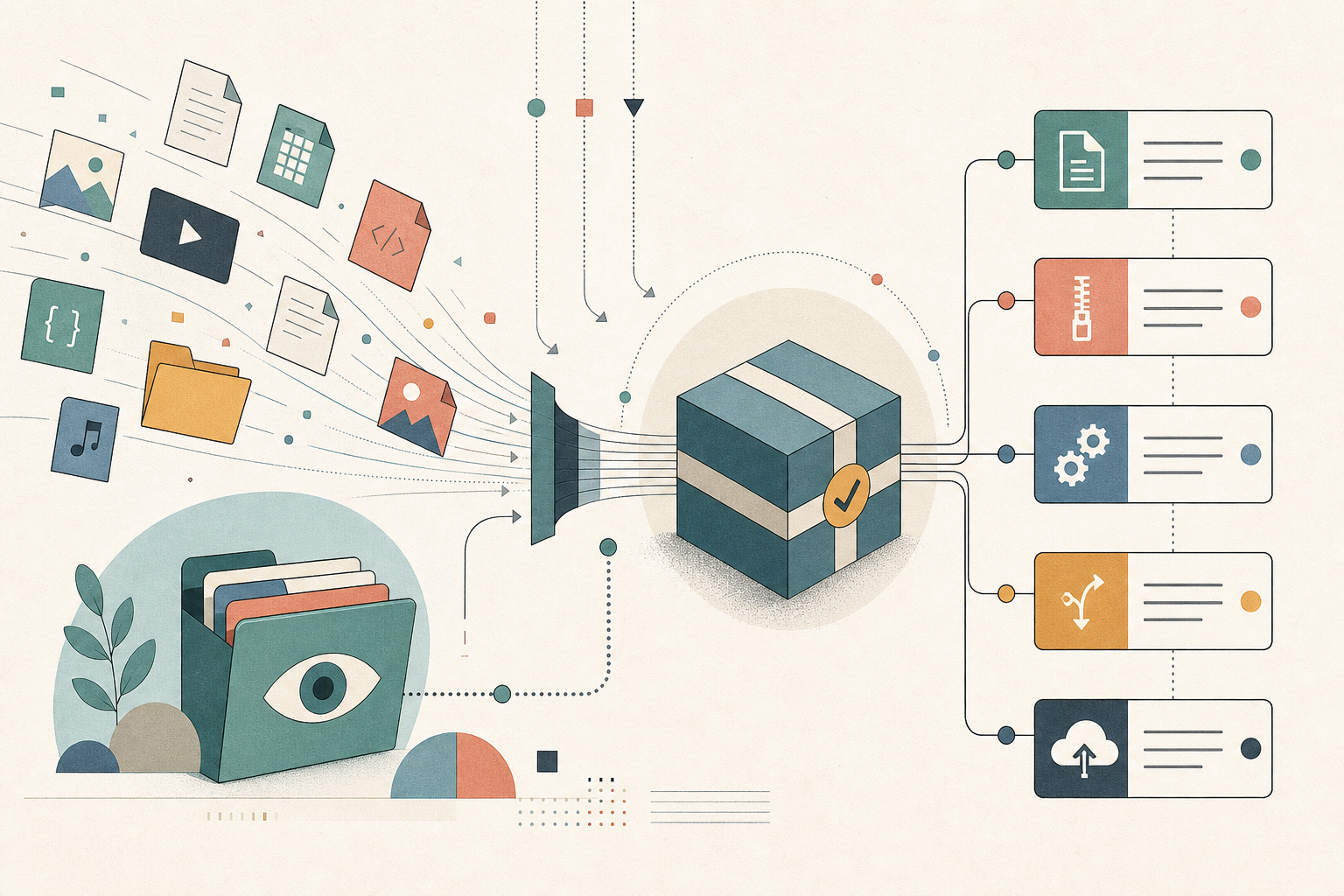
If you work with files regularly, you probably have a routine that involves the same tool, the same settings, applied to the same kind of file, over and over. Screenshots that need compressing before they go into a report. PDFs that land in a folder and need to be stripped of metadata. Images uploaded to a watched folder that should all be converted to WebP.
The manual version of this: open the folder, select the files, drag them into the tool, wait, move the output. Every single time.
Watch a Folder. Process Files Automatically.
The Folder Monitor in 1FileTool watches any folder you point it at and processes new files automatically as they arrive. Set the folder, pick the tool and settings, and 1FileTool handles the rest — in the background, while you do other things.
You no longer have to touch the tool each time a new file shows up.
How It Works in Practice
Set it up once
Open Folder Monitor from the sidebar, click the + button, and choose:
- The folder to watch — any folder on your machine, including synced folders
- The tool to apply — compress images, convert to WebP, compress PDFs, strip metadata, convert to grayscale, and more across image, PDF, and video categories
- The settings for that tool — the same options you'd set manually, configured once here
Hit Save and the monitor starts immediately. It runs in the background, picking up files as they arrive.
See exactly what's being processed
A live event log shows every file the monitor touches: file name, tool applied, result, timestamp. You can see at a glance that a file was processed, what the outcome was, and when it happened.
The event log is searchable and scrollable. If you want to verify that a batch that landed overnight was all processed correctly, open the monitor and scan the log.
Pause, resume, or remove monitors
Each monitor has a toggle to pause and resume. If you're about to drop a set of files you don't want auto-processed, pause the relevant monitor, drop the files, unpause. Nothing runs while paused.
Removing a monitor doesn't delete any files — it just stops watching.
Notifications without interruption
A bell icon in the sidebar shows the unread count from all your monitors. It's not a system notification that pops over your work — it's a counter that accumulates while the app runs. Click the bell to see what was processed since you last checked, and click any event to jump to that monitor.
Before vs After
| Scenario | Before | After |
|---|---|---|
| New screenshot in downloads folder | Open 1FileTool, drag file, compress, move output | Folder Monitor auto-compresses on arrival |
| PDFs landing in a shared folder need metadata stripped | Check folder manually, batch process | Monitor strips metadata from every new file |
| Image uploads need WebP conversion | Manual drag each batch | Monitor converts every new file to WebP |
| Verify all files were processed | Check tool history manually | Event log shows every file with timestamp and result |
Who Benefits Most
Anyone with a recurring file workflow — If you do the same thing to the same file type more than a few times a week, a monitor eliminates the repetition completely.
Teams with shared folders — If files land in a shared location (Dropbox, a local NAS, a synced folder) and always need the same processing before they're usable, a monitor handles that layer automatically.
Developers using 1FileTool as part of a local pipeline — Drop files into a watched folder from a script or another app, and 1FileTool processes them without any additional orchestration.
Try It
Open Folder Monitor in the sidebar, create a new monitor pointing at a folder you use regularly, and pick a tool you'd normally apply manually. Drop a test file into the folder and watch the event log. The first time a file gets processed automatically — without you touching the tool — you'll understand why this is hard to go back from.