Let Your AI Assistant Use Your File Tools — Without Uploading Anything
1FileTool now exposes 64 of its tools to Claude Code, Codex and Gemini over MCP. Ask for the work in plain language and it runs locally — your assistant sends instructions, never your files.

You are three messages deep in a conversation with your coding assistant. It has just finished renaming a folder of exports, and the next thing you need is for those forty screenshots to be under 300 KB each before they go into the docs. So you stop, switch to another app, drag the folder in, pick a quality, press Run, wait, go back, and pick up the thread you dropped four minutes ago.
Or the assistant offers to do it for you — and then it shells out to ImageMagick with flags you did not choose, writes the results somewhere you did not pick, and the originals are quietly gone.
Neither of those is good. The first makes you the file clerk for your own assistant. The second hands a script full access to your disk and hopes for the best.
Your assistant can now use the tools you already trust
1FileTool exposes its tools to Claude Code, Codex, and Gemini over MCP. You say what you want in plain language, your assistant does it through 1FileTool, and every file stays on your Mac.
The phrase that routes a request here is deliberately blunt: "use 1filetool mcp to compress these images". Say that, and the work happens in the same engines, with the same output folder and the same history you get when you press Run yourself.

How it works in practice
One click connects every CLI on your machine
Open Settings → AI Access and flip the toggle. The badge next to it reads Listening once the server is up, and the line underneath tells you exactly where it is accepting requests: 127.0.0.1, loopback only, nothing exposed to your network.
Then press Reconnect. 1FileTool looks for Claude Code, Codex CLI, and Gemini CLI on your machine and writes the config entry for each one it finds — you can see which are wired up and which are missing at a glance. There is no JSON to hand-edit and no Node install to chase down; the server runs on the app's own binary. If you use a client the app does not know about, Set up another client manually gives you the snippet to paste.
Changed your mind? Remove unregisters it from every CLI, and the toggle stops the server outright.
64 jobs, addressed by name
Your assistant does not get a wall of 200 tool schemas dumped into its context. It gets a short list of tools and a registry it can query, which keeps the whole thing legible: 64 operations spanning PDF (20), image (12), video (9), audio (7), files (6), privacy (4), on-device AI (4), and automation (2).
That covers compressing and converting images, PDFs, video, and audio; splitting, merging, and OCR-ing PDFs; extracting text; stripping metadata; zipping and renaming — and running the workflow recipes you already saved.
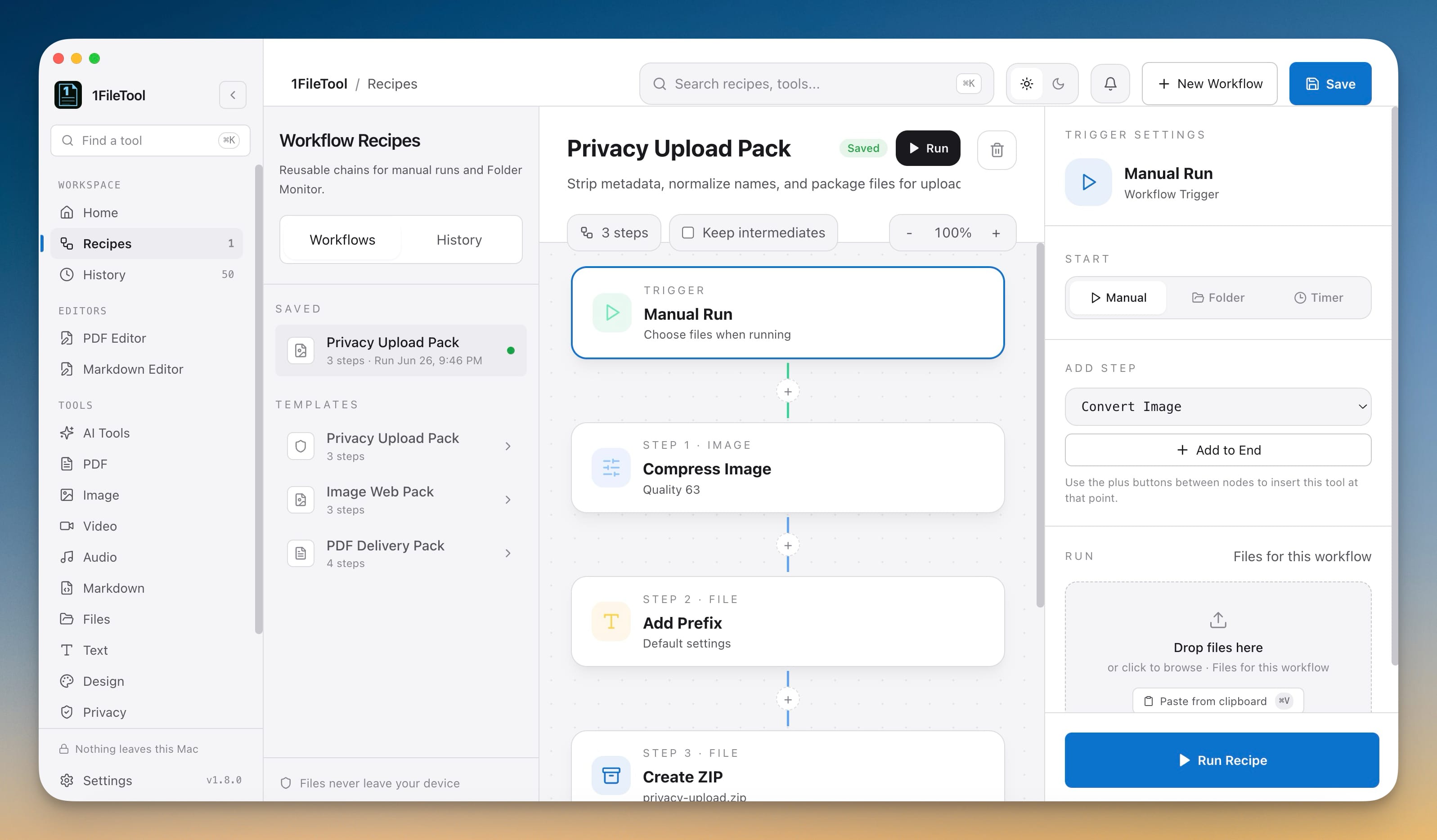
That last one is the quiet win. Build a chain once — strip metadata, add a prefix, zip it — and afterwards "run my Privacy Upload Pack on this folder" is a single sentence.
Nothing gets destroyed behind your back
Operations that overwrite or delete your originals — Shred, Rename — refuse to run when an assistant asks. They come back asking for explicit confirmation first, so a misread instruction cannot cost you a file. Everything else writes to your normal output folder, where you can see it.
Inspecting a file is free: asking how big something is, what its dimensions are, how many pages it has, or how long it runs produces no output file and costs you nothing from your daily allowance.
The allowance you can see before you spend it
Work your assistant does counts toward the same 8 free files a day as work you do by hand, and it says so plainly when you have run out. What is new is that you can watch the number instead of discovering it.
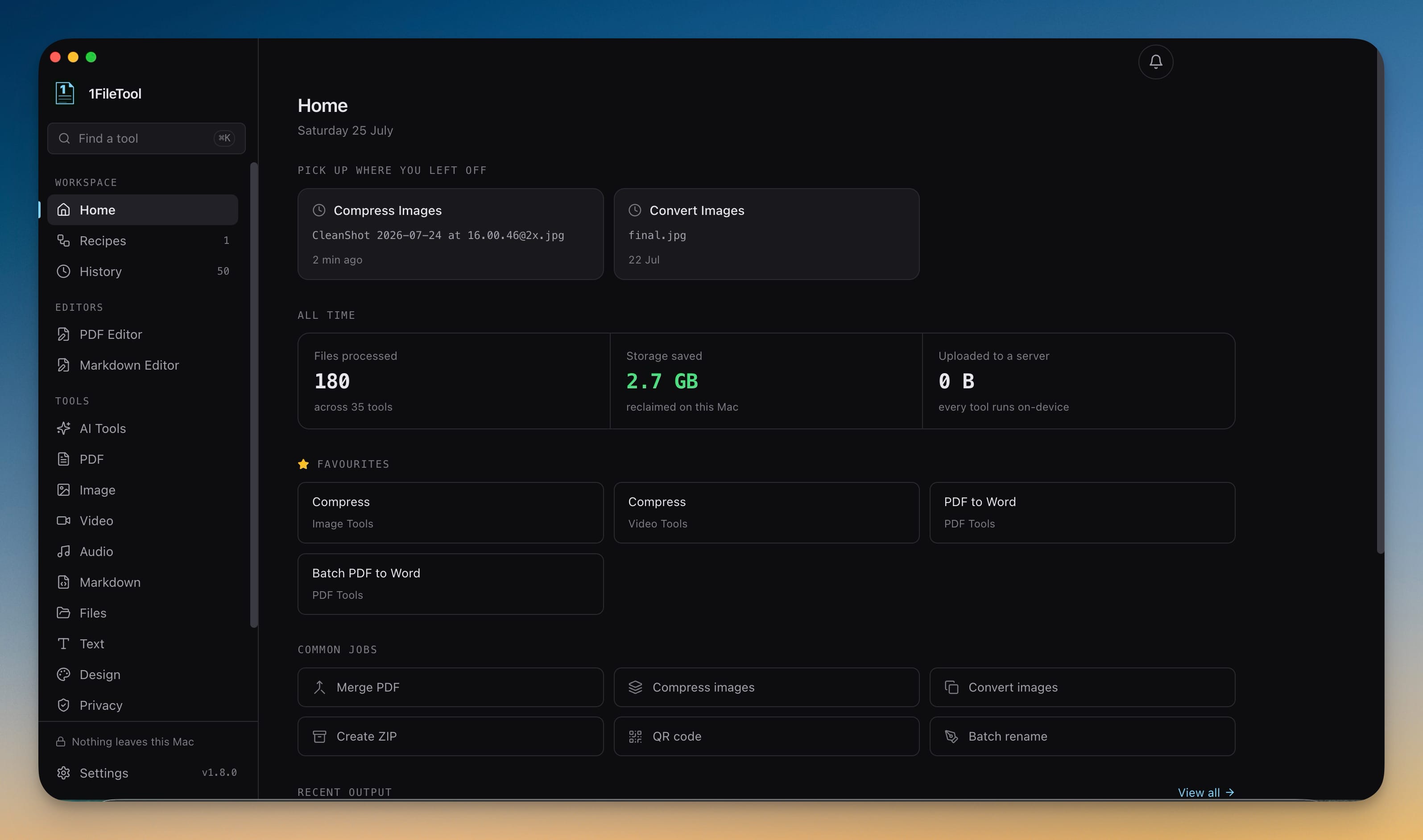
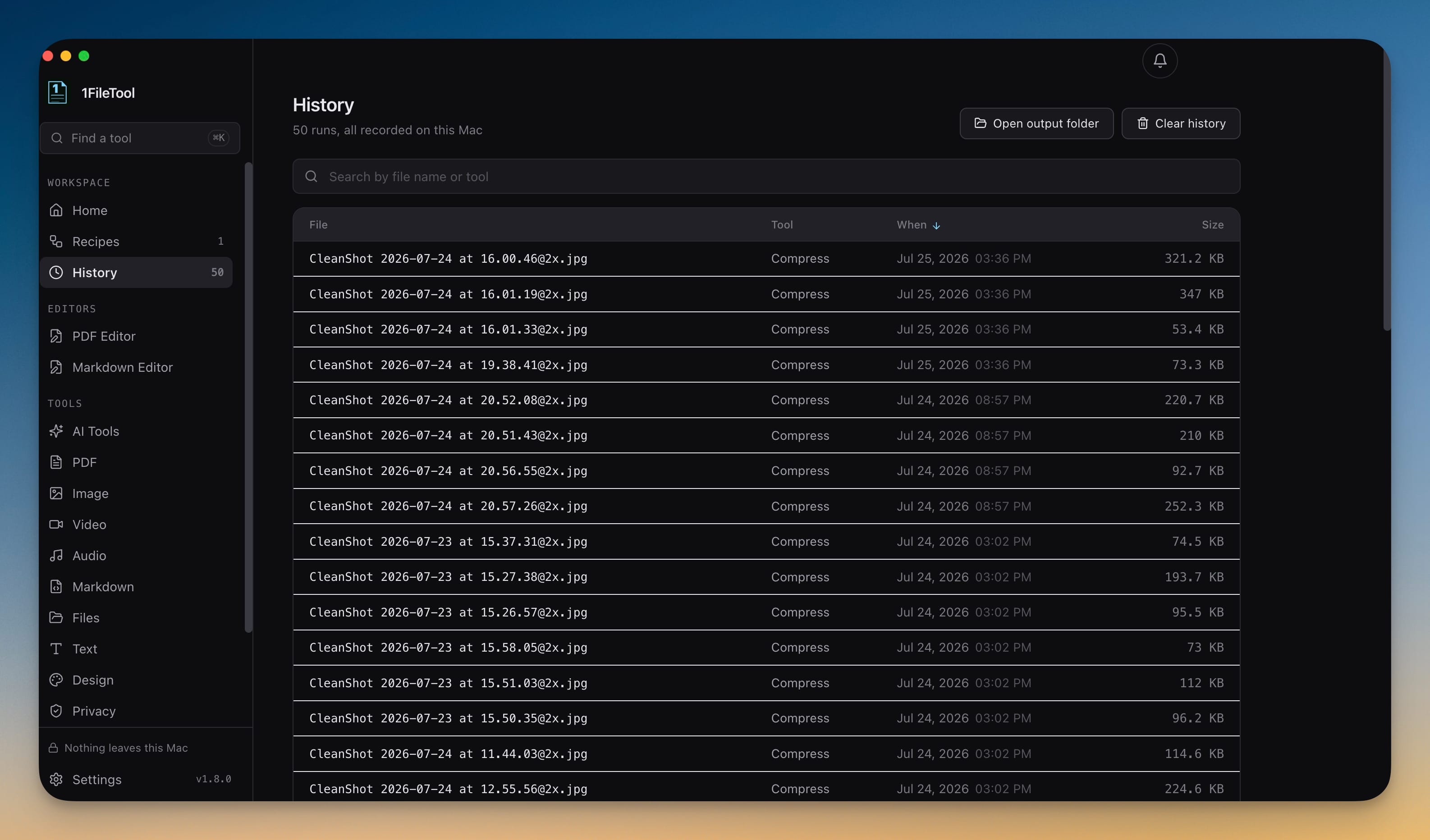
The counter lives in the sidebar and ticks down as you work — and it updates the moment an assistant-driven job finishes, so the number is honest no matter who pressed Run. Every tool page repeats it in the run bar, right next to the button.
Getting to a tool got faster too
The tool list now filters as you type. Looking for Compress, Watermark, or Strip EXIF inside a category no longer means scrolling past everything else — start typing and the list narrows.
Each category also opens into sections named after the job you are doing — Reduce, Resize, Convert, Edit, Adjust, Protect — instead of one flat run of names.
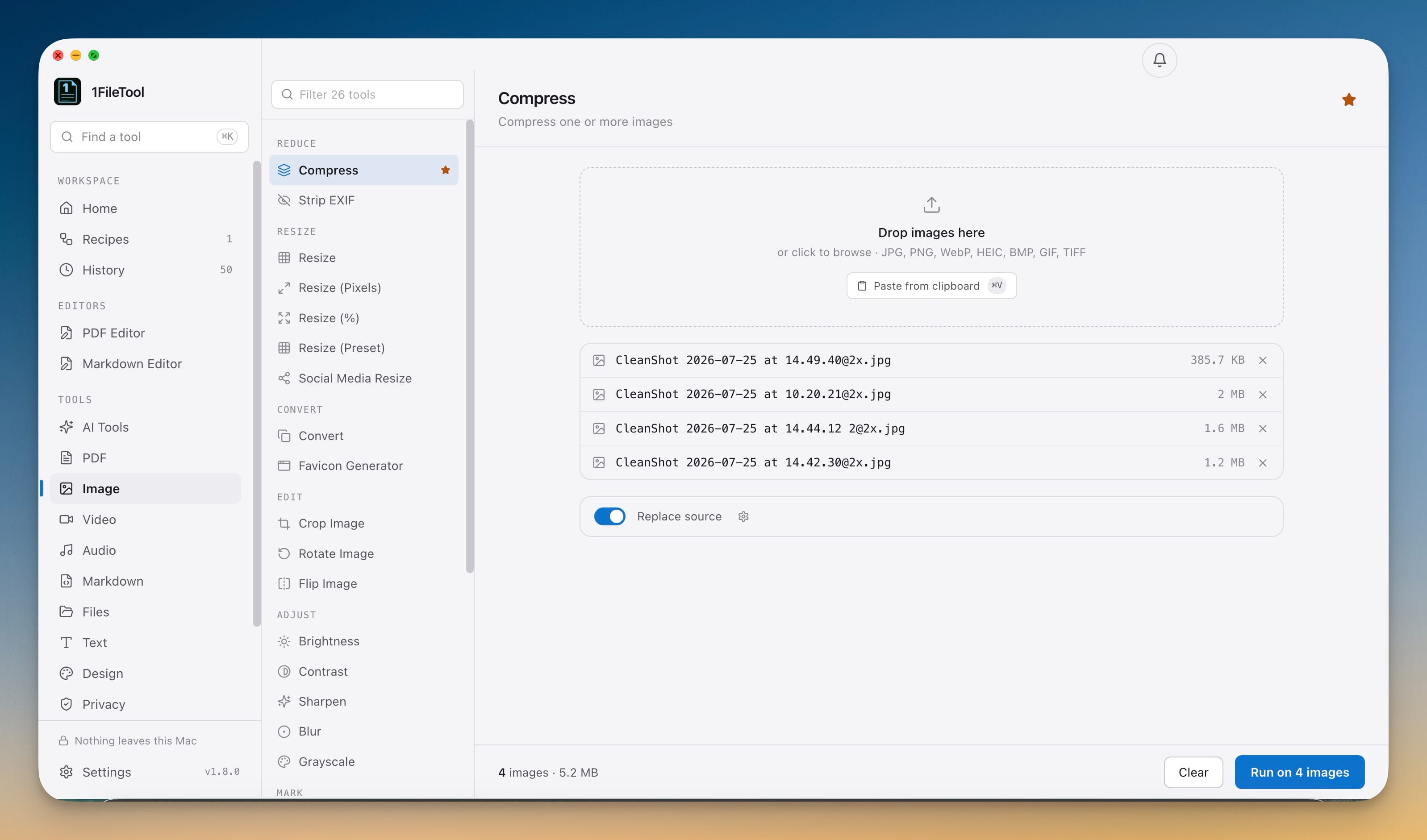
And once your files are loaded, picking a different tool keeps them. Files, settings, and results all live on one page, so changing your mind from Resize to Resize (Pixels) no longer sends you back to an empty drop zone.
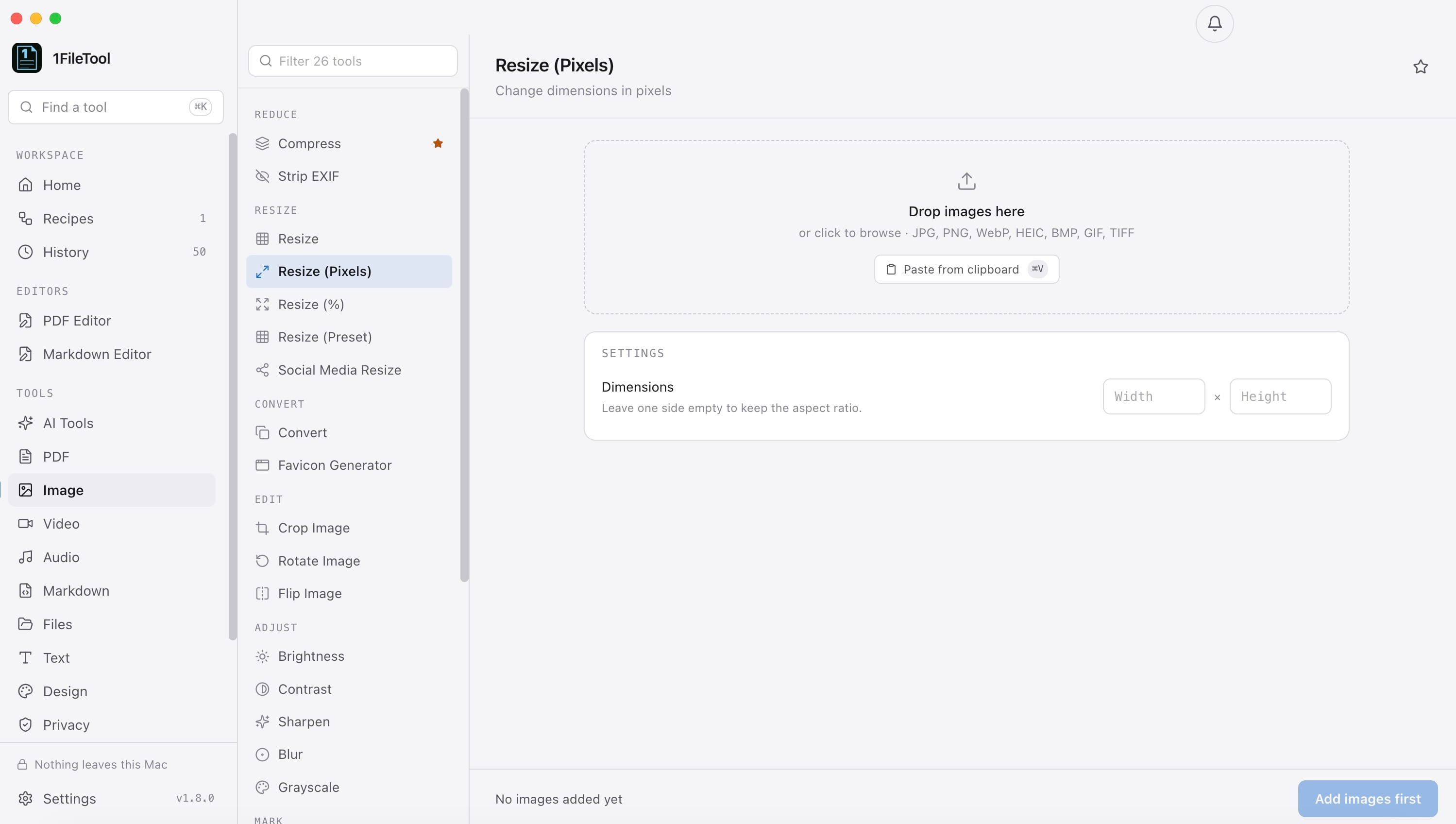
The run button stays docked at the bottom of the window with your file count and total size beside it. On a long tool page, it is always where you left it.
Before vs after
| Getting a batch compressed while you work | Before | Now |
|---|---|---|
| Leaving your assistant mid-thread | Every time | Never |
| Choosing the tool | Find it in the sidebar, scroll the list | Say what you want |
| Where the files go | Wherever the shell command wrote them | Your normal output folder |
| Risk to your originals | A stray --in-place flag |
Destructive jobs refuse without confirmation |
| What leaves your machine | Whatever a cloud tool uploads | Nothing — instructions only |
| Knowing your remaining free files | Discover it when Run fails | Counter in the sidebar and run bar |
Who gets the most out of it
If you live in a terminal with an assistant open, this removes the last reason to leave it. Compressing the screenshots for a PR, OCR-ing a scanned contract, pulling the text out of a PDF — all of it happens in the same conversation.
If you handle files you cannot upload — client documents, medical scans, anything under NDA — you get assistant convenience without the usual trade. The assistant sends instructions; the bytes never move off your disk.
If you already built recipes, you just got a voice interface for them. The chains you assembled by hand are now things you can ask for by name.
Try it
Update to v1.9.0, open Settings → AI Access, flip it on, and press Reconnect. Restart your CLI so it picks up the new tools, then try the sentence that started all this: use 1filetool mcp to compress these images.
It stays off until you turn it on, and turning it off stops it immediately. In between, your assistant gets to do the file work — and you get to stay on the thing you were actually doing.
From across the StoicSoft network
Hand-curated reads on the same topic from sister sites in the StoicSoft family.
- StoicBrowser3 min read
Introducing Stoic Browser: one calm window for every product you run
Stoic Browser 0.1.0 is out for macOS, Windows and Linux. It gives each product its own workspace and logins, lets your coding agents work inside them, and replays your browser chores on a schedule.
Read on stoicbrowser.com 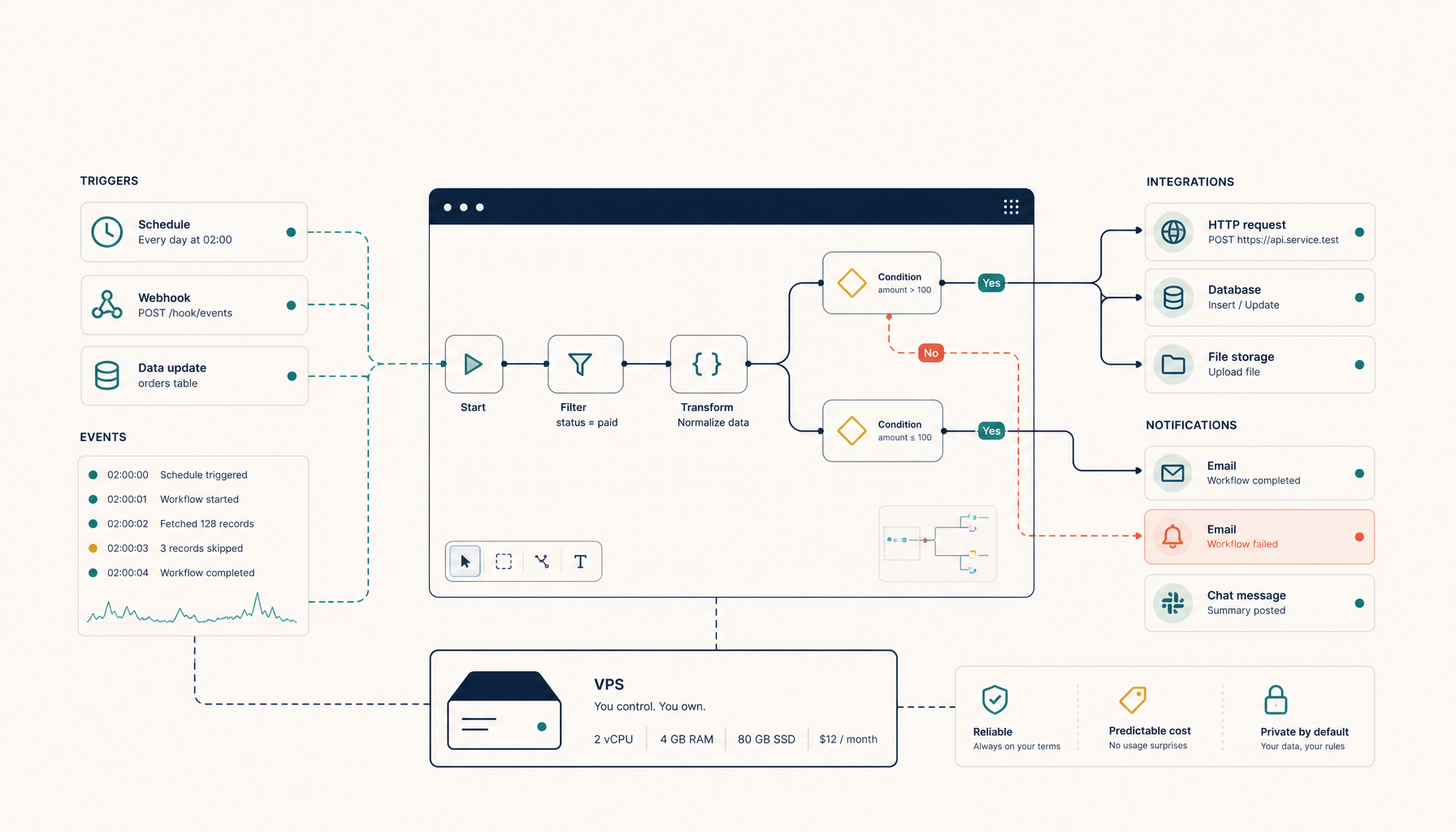 Deploy to VPS25 min read
How to Self-Host n8n on a VPS (Production Setup)
Run n8n workflow automation on your own VPS. Build integrations without per-execution pricing.
Read on deploytovps.com 1AIVault6 min read
Point each AI tool at the config file it really reads
Named profiles, portable installs and non-standard locations used to connect green and do nothing. You can now aim 1AIVault at the exact MCP config file each agent reads — and test it before you save.
Read on 1aivault.com