Edit PDFs Visually and Save Your Tool Settings as Presets
1FileTool now has a visual PDF editor — see pages as you rearrange, annotate, and watermark. Plus tool presets: save your settings once and apply them in one click, across every tool.
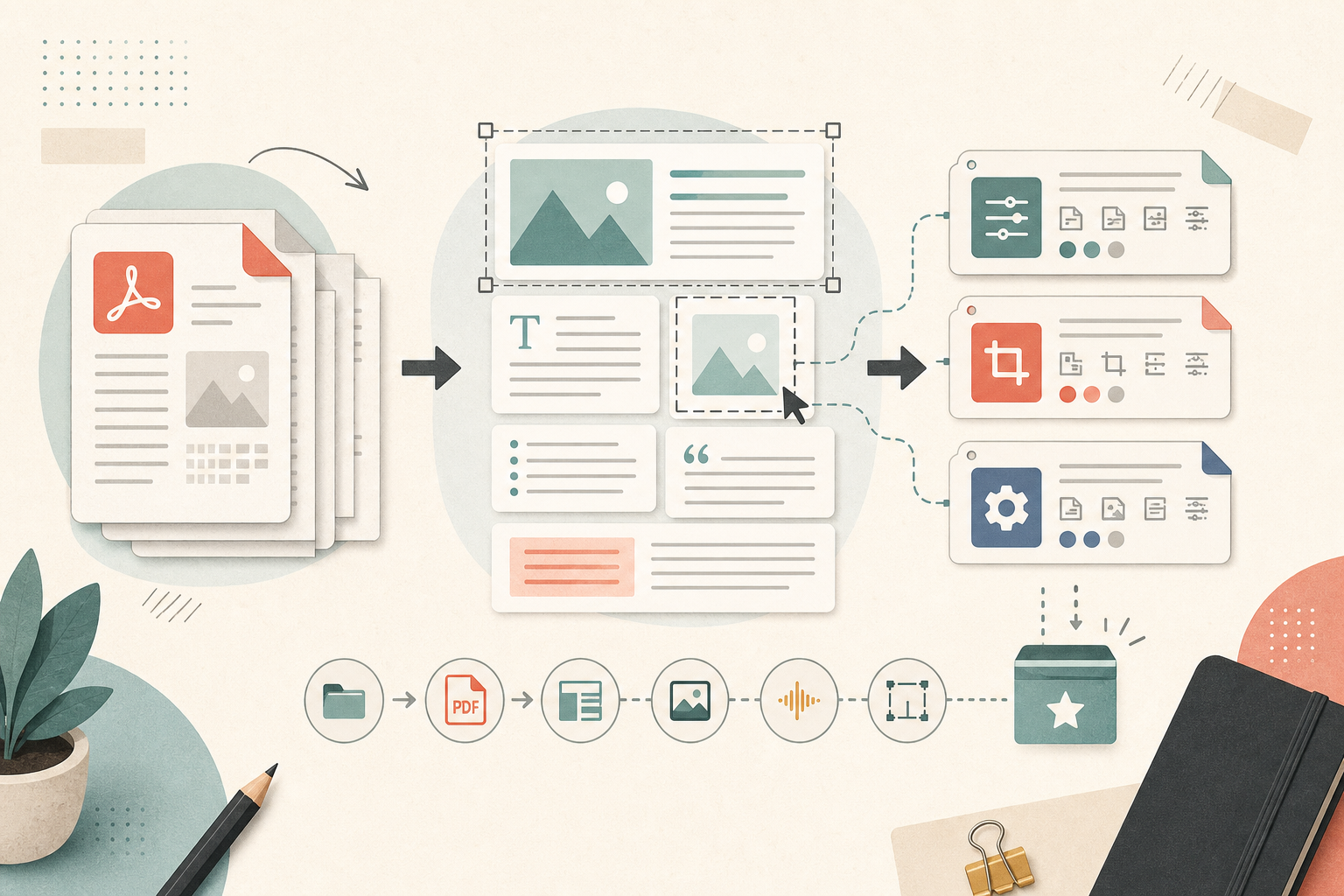
You've used 1FileTool to compress a PDF. Now you need to rearrange a few pages, add a watermark for a client, and delete the cover page. Three separate tools, three separate drops, and you still can't visually confirm the page order looks right before saving.
The same friction appeared with settings. If you always compress images to 80% quality for web, or always export PDFs with the same combination of options, you were re-entering those settings every time.
Edit PDFs Visually, Save Your Favorite Settings
1FileTool now has a visual PDF editor and a preset system across every tool. Open any PDF and make changes directly — see each page as you work, not as a blind conversion. And for any tool you use regularly, save your configuration once and apply it with one click.
How It Works in Practice
The PDF editor: see what you're changing
Open the PDF Editor from the PDF tools section and your document loads as a live page-by-page preview. From there you can:
- Click anywhere on a page to add text — position it exactly where you need it, not in a predefined field
- Drag a selection to highlight — choose the color, the opacity, the coverage
- Add a watermark — text or image, positioned and sized to your liking
- Reorder pages — drag thumbnails in the sidebar to change the sequence, see the change reflected immediately
- Delete pages — click a thumbnail and hit delete; the rest of the document shifts up
- Rotate and extract — flip individual pages or pull specific pages out as a new PDF
Save when you're done and the result is a new file — the original is untouched.
This replaces the workflow of making a change, downloading the result, realizing the text is in the wrong position, and starting over.
Presets: stop re-entering settings you already know
Every tool in 1FileTool — image compression, video conversion, PDF compression, audio adjustment — now has a preset bar above the drop zone. Name a configuration, save it, and it appears in the bar.
Presets work per tool and persist across sessions. The compression quality you always use for client deliverables, the resize dimensions for your banner images, the watermark position you've adjusted seven times — save each one as a preset and it's ready the next time you open that tool.
Load a preset and all the settings fill in at once. Switch between presets to compare configurations before processing.
Clipboard paste and drag out
You no longer have to save a screenshot to a file before processing it. Cmd+V in the drop zone pastes your clipboard image directly into the tool — useful for quickly compressing a screenshot or running a color palette extract on something you just grabbed.
Going the other direction, processed results can be dragged straight from the results area into Finder, Slack, email, or any other app that accepts file drops. You don't have to locate the output file in the filesystem — just drag it where it needs to go.
Before vs After
| Task | Before | After |
|---|---|---|
| Rearrange PDF pages | Convert blind, check result, re-do if wrong | PDF Editor with live page preview |
| Add watermark to PDF | Set options, process, check position, adjust | PDF Editor with real-time positioning |
| Apply same image quality every time | Re-enter settings each use | Save as preset, load with one click |
| Process a screenshot | Save to file first, then drop | Cmd+V into drop zone |
| Send result to Slack | Find file in Downloads, drag to Slack | Drag directly from results area |
Try It
Open any PDF in the PDF Editor — look for it in the PDF tools section. Drop the file, and the page thumbnails load immediately. Try reordering two pages and see the change before saving. For presets, open any tool you use regularly, adjust the settings to your preference, and save it with a name. It'll be waiting there next time.