Convert PDF to Word — and Back — Without Uploading a File
1FileTool now converts PDFs into editable Word documents and back again — with OCR for scanned pages, batch folders, and Folder Monitor automation — all on your own machine, nothing uploaded.
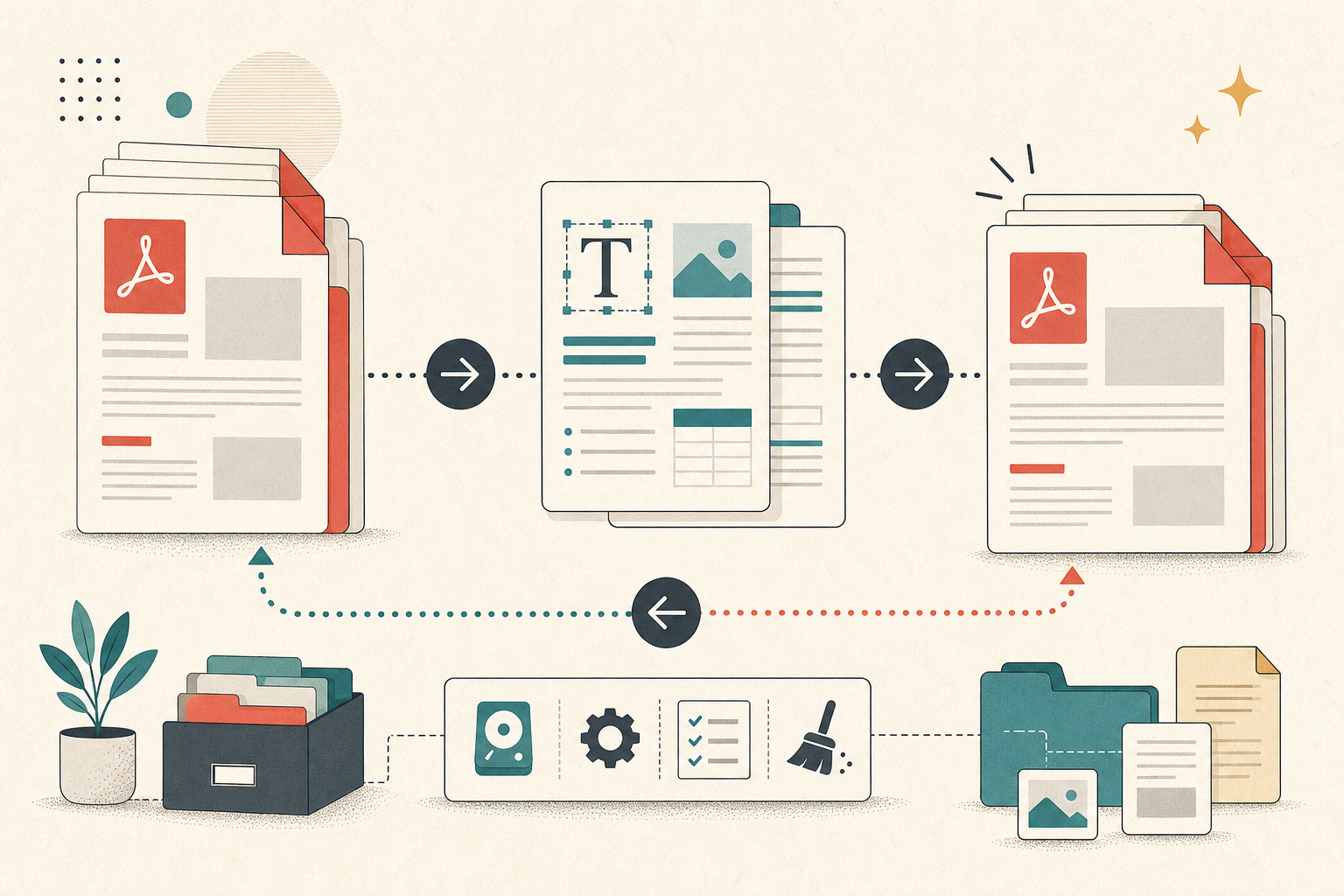
You need to fix one paragraph in a PDF. Maybe it's a contract with a typo, a resume you want to tweak before sending, or a report a colleague handed you as a locked-down PDF instead of the editable file you actually asked for. The words are right there on the screen — and you can't touch a single one of them.
So you do what almost everyone does: you search "PDF to Word," land on the first site that comes up, and upload your document to a server you know nothing about. The contract with your home address on it. The resume with your phone number. The report your client stamped confidential. It converts, and you get your Word file — but now a copy of that document is sitting on a stranger's machine, and you have no idea who can read it or how long it stays there.
There's a better way, and it doesn't involve uploading anything to anyone.
What changed
1FileTool now turns PDFs into editable Word documents — and turns Word documents back into PDFs — entirely on your own machine. You drop a file in, you get the converted file out, and nothing ever leaves your device. No account, no upload, no waiting on someone else's server.
How it works in practice
Drop a PDF, get an editable Word file
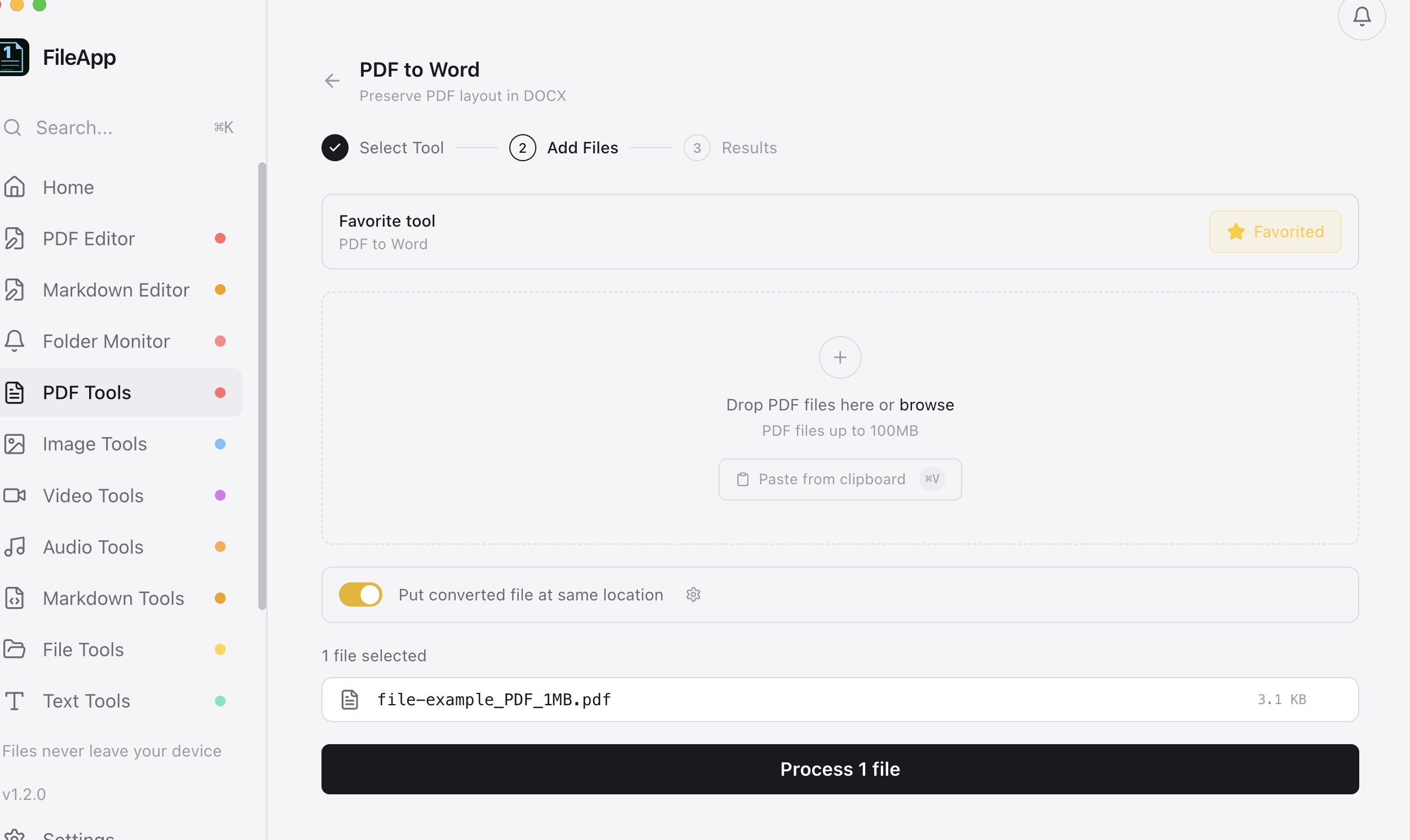
Open PDF Tools, choose PDF to Word, and drag your file onto the drop zone (or paste it straight from the clipboard). 1FileTool converts it into a .docx that keeps the original layout, images, and formatting — so the result opens cleanly in Word or Google Docs instead of arriving as a wall of misaligned text. PDFs up to 100MB are fair game.
When it finishes, you land on a Results screen with the finished document ready to go. Click Reveal to jump straight to it in Finder, or drag it right out of the window into Slack, an email, or Word — no digging through folders to find where it saved.

Turn a scanned document into text you can actually edit
A scanned PDF is really just a picture of a page — your computer sees pixels, not words. Scanned PDF to Word runs OCR on those pages and pulls out real, selectable text, so a contract you scanned or a page you photographed becomes something you can edit, search, and copy from. You get a Word file with actual text instead of an image of text.
Convert a whole folder in one pass
Got a stack of PDFs to deal with? Batch PDF to Word takes the whole lot at once — point it at a folder and get a DOCX for every PDF. And if one file is corrupt or password-locked, it no longer takes the rest down with it: the batch skips that file, keeps converting everything else, and shows you exactly which files were skipped and why.
Go the other direction: Word to PDF
The conversion runs both ways. Word to PDF takes a .docx and produces a clean PDF with the text and embedded images carried over — for when you need to send something that looks identical on every device and can't be accidentally reflowed.
Keep it hands-free with Folder Monitor
All four tools plug into Folder Monitor. Point it at a watched folder and new PDFs auto-convert to Word — or new Word files auto-convert to PDF — the moment they land, without you opening the app at all. It's the difference between doing a conversion and setting up one that just happens.
One more quiet upgrade: conversions now save the new file next to your original instead of overwriting it. The "Put converted file at same location" toggle keeps both the PDF and the new Word file side by side, so you never lose the source.
Before vs after
| Editing a PDF used to mean | Now |
|---|---|
| Uploading your document to an unknown website | Converting locally — nothing leaves your device |
| A scanned page arriving as an uneditable image | OCR pulls out real, editable text |
| Converting PDFs one at a time | Dropping a whole folder and walking away |
| One bad file killing the entire batch | Bad files skipped, the rest finish, you see what was skipped |
| Hunting for where the output saved | Reveal it, or drag it straight into another app |
Who benefits most
Anyone who handles sensitive documents. Legal, HR, and finance work runs on PDFs that should never touch a random conversion site. Keeping the whole process offline means a confidential file stays confidential.
People who work where the internet doesn't. On a plane, on a train, on a spotty connection — local conversion doesn't care whether you're online, because it never needed to be.
Anyone drowning in batches. If "convert these" regularly means a folder of dozens, the batch tool plus Folder Monitor turns a tedious afternoon into a single drag-and-drop.
Try it
Open PDF Tools, pick PDF to Word, and drop in the next PDF you've been wishing you could edit. It converts on your machine, keeps your original intact, and hands you a Word file you can actually work with — no upload, no subscription, no document left behind on someone else's server.
Download 1FileTool at 1filetool.com.
From across the StoicSoft network
Hand-curated reads on the same topic from sister sites in the StoicSoft family.
 1LocalAITool6 min read
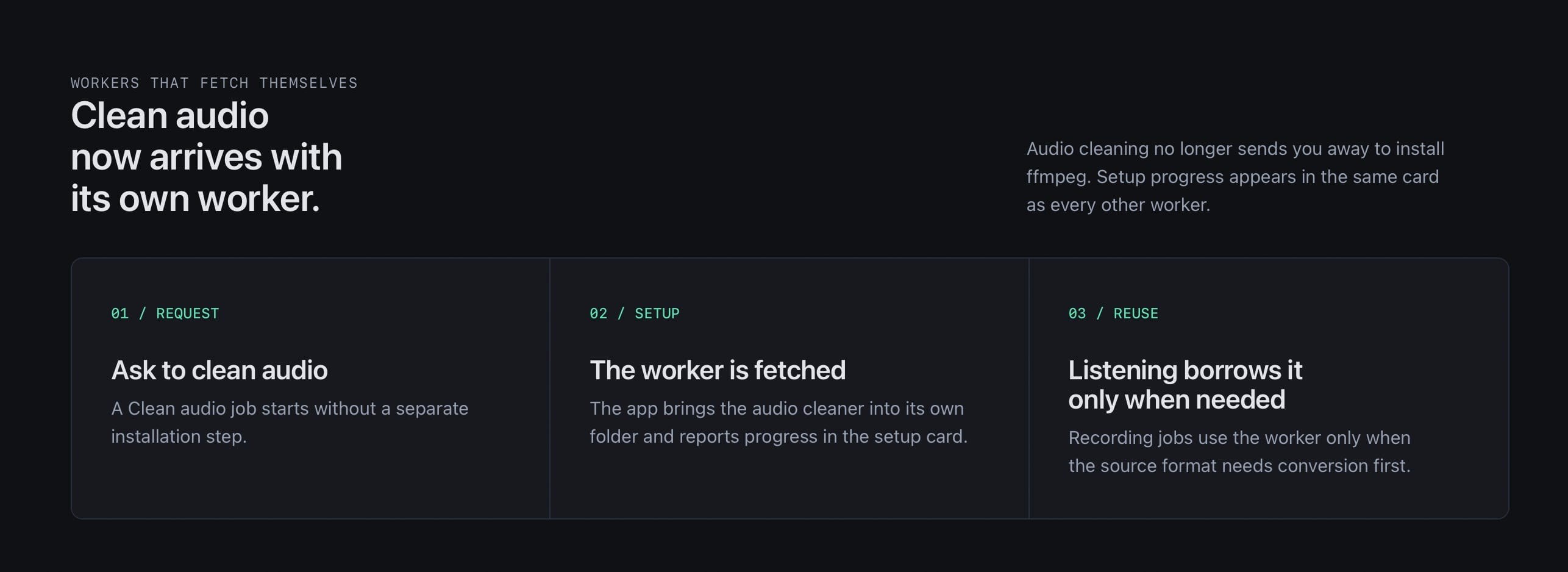
Clean up a noisy recording on your own computer, no ffmpeg to install
Take hum, hiss and rumble out of a voice memo or interview without uploading it anywhere. In 0.6.0 the audio cleaner installs itself the first time you need it.
Read on 1localaitool.com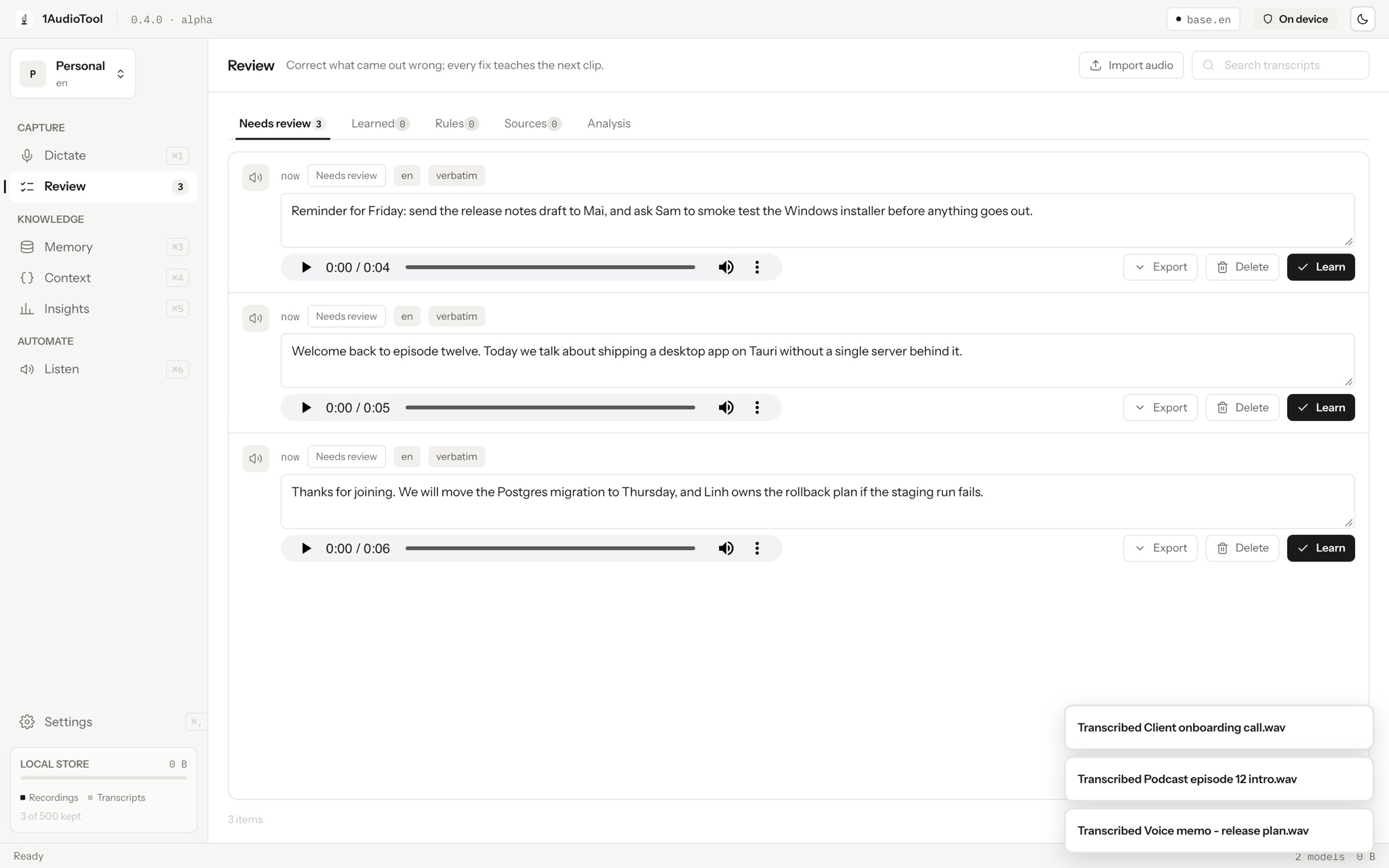 1AudioTool5 min read
Turn any audio file into a transcript that already knows your words
Drop a recording on Review and it is transcribed on your machine with the same model, vocabulary and correction rules as your dictations, then copy SRT or VTT captions straight from the clip.
Read on 1audiotool.com