Every 1FileTool Tool Is Now One Menu Click Away
1FileTool 1.9.1 puts all 200+ tools in the menu bar. Image, Video, Audio and PDF get their own menus, Tools holds the rest, Go returns you to your workspace, and ⌘, opens Settings from anywhere.

You know the tool exists. You have used it a dozen times. And still, every time you need it, the same half-minute plays out: bring the window forward, look at the sidebar, click into PDF, scroll past three dozen entries, find Extract Pages, click it. Then you need to crop an image, so you do it again in the other direction.
None of that is hard. It is just friction that repeats — and repeated friction is what makes a tool with 200 tools feel bigger than the job you are actually doing.
Every tool is now one menu click away
1FileTool 1.9.1 puts the whole catalogue in the menu bar, where your operating system already trained you to look. Image, Video, Audio and PDF are top-level menus listing every tool they contain. Everything else sits under Tools. Where you were working — Home, History, Recipes, Folder Monitor, Settings — lives under Go.
You no longer navigate to a tool. You pick it.

How it works in practice
The four media menus list their tools in full
Open Image and you get all 26 image tools by name. PDF carries 42, Video 24, Audio 15. Nothing is hidden behind a "more" item and nothing is abbreviated: Compress, Resize Image, Resize by Percentage, Resize Preset, Convert, Crop Image, Rotate Image, Flip Image, Adjust Brightness, Strip EXIF, Favicon Generator — the same names you already know from the tool pages.
Each menu starts with All Image Tools (or All PDF Tools, and so on), which opens the category overview if you would rather browse than pick. Below the separator, selecting any entry takes you straight to that tool's page. If the window is minimised, it comes forward first — the menu bar works even when 1FileTool is not the app you are looking at.
Tools holds everything else, grouped the way the app is
The categories that are not media types are nested one level down under Tools: Files (24 tools), Text (30), Design (14), Markdown (10), Privacy (7) and AI (5). The grouping matches the sidebar exactly, so the map you already carry in your head still works.
Under those sit the quick groups, organised by the job rather than the file type. Compress offers Images, Videos, PDFs and ZIP Archive. Convert offers Images, Videos, Audio, PDF to JPG, PDF to Word, Word to PDF, CSV to Excel and Excel to CSV. Resize and Watermark work the same way. When you know what you want done but not which category the app files it under, this is the shorter path.
At the bottom are the standalone destinations that were never really "tools" — PDF Editor, Markdown Editor, Workflow Recipes, Folder Monitor, History and Power Tools.
Go is for where you were, not what you do
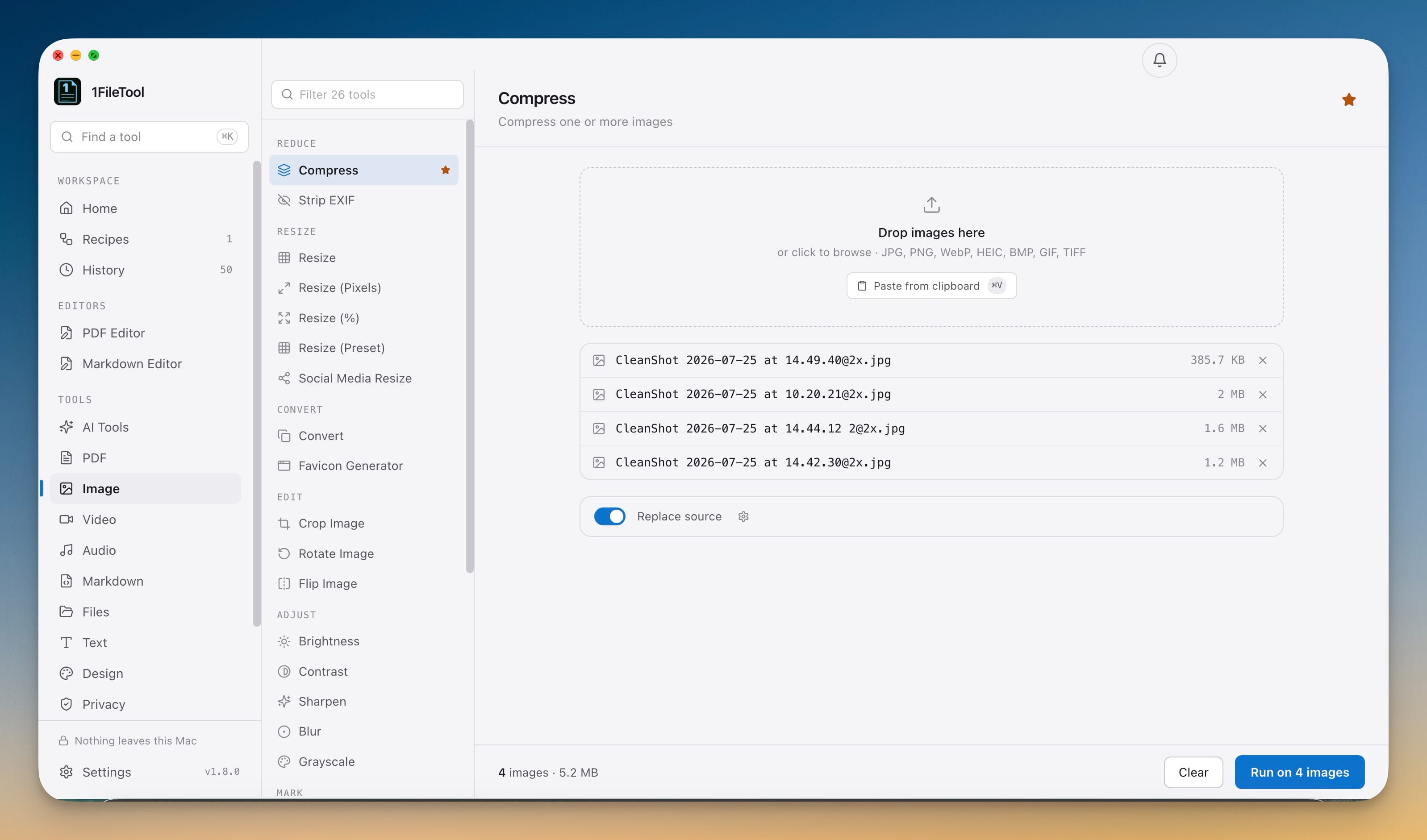
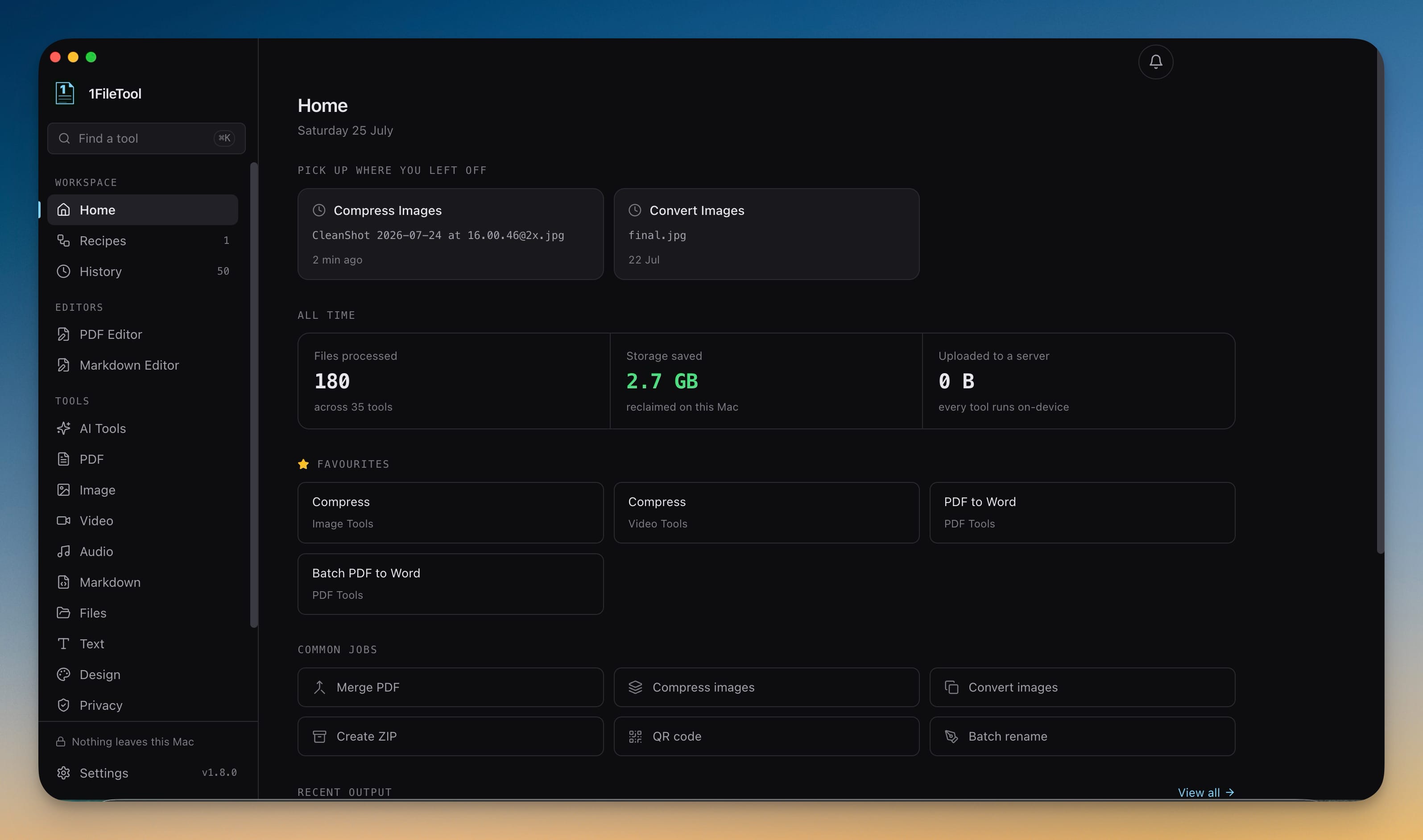
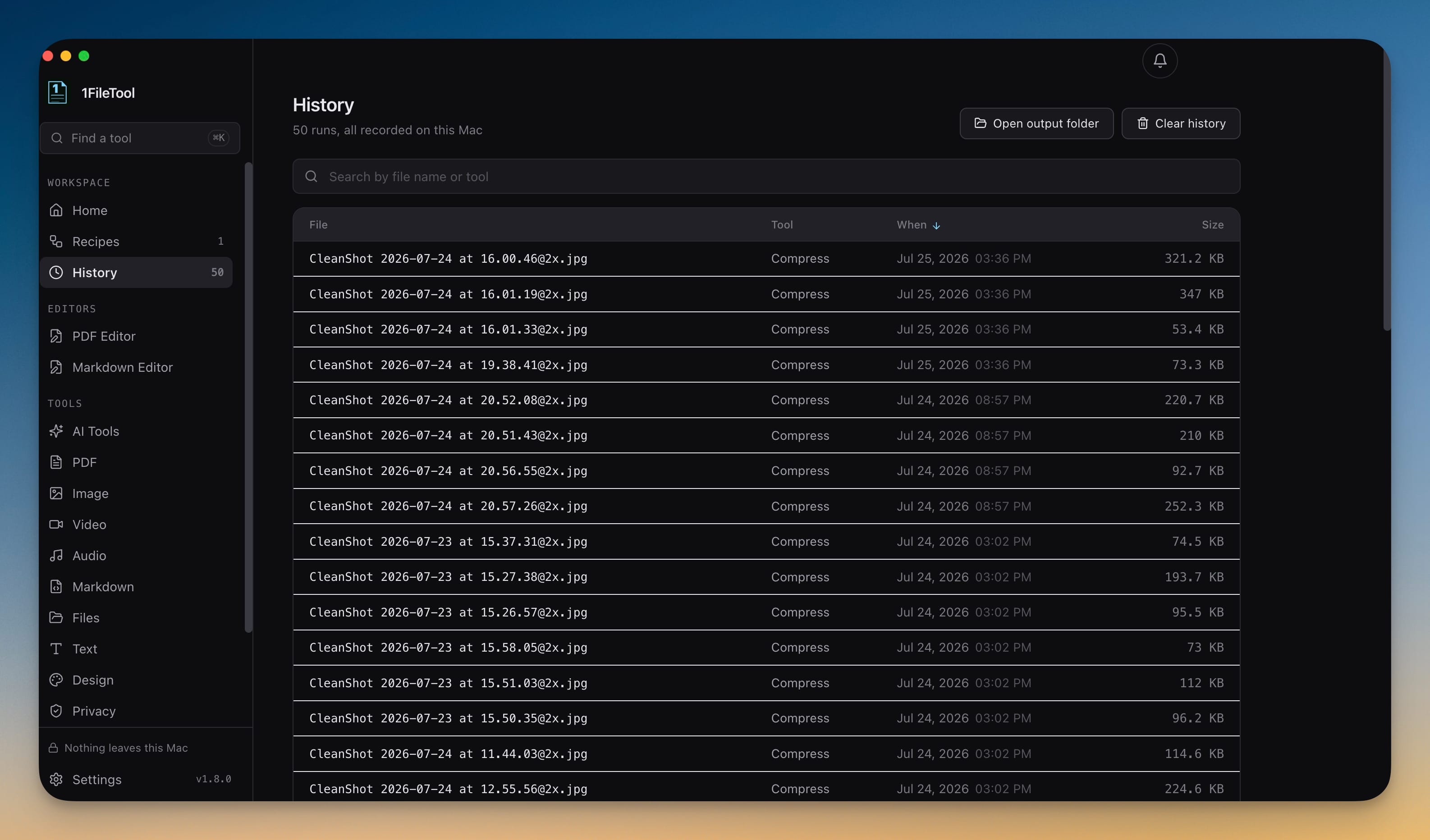
The Go menu is the workspace: Home, History, Workflow Recipes, Folder Monitor and Settings. It is the fastest way back to a run you already finished — open Go → History, find the file, and reveal it in Finder without touching the sidebar.
Settings answers to a keystroke
Press ⌘, on Mac or Ctrl+, on Windows and Linux and Settings opens immediately — the same shortcut every other desktop app on your machine uses. Useful when you want to change your output folder mid-batch, check how many of your 8 free daily files are left, or flip AI Access on before asking your assistant to do the next round.
Before vs after
| What you want | Before 1.9.1 | Now |
|---|---|---|
| Open Extract Pages | Focus window → PDF in sidebar → scroll 42 tools → click | PDF → Extract Pages |
| Compress a video | Focus window → Video → find Compress → click | Tools → Compress → Videos |
| Get back to a finished run | Focus window → History in sidebar | Go → History |
| Change your output folder | Focus window → Settings in sidebar → find the tab | ⌘, |
| Report a bug | Leave the app, find the feedback site | Help → Send Feedback |
The saving is a few seconds each time. The point is that it is a few seconds every time, and you stop needing to remember where a tool lives to use it.
Reaching support without leaving the app
Settings now lists the three ways to reach us, each one click: 1filetool.com for the product page, feedback.stoicsoft.com to share an idea or report a problem, and [email protected] for email. The Help menu carries the same three — 1FileTool Website, Send Feedback, Email Support — so you can reach them from anywhere in the app.
Also in this release
Windows and Linux feel like native desktop apps. The empty band under the title bar is gone, and the top strip of the window no longer swallows clicks meant for the sidebar or the page underneath. Shortcut hints show Ctrl instead of ⌘, and the privacy copy reads "Nothing leaves this PC" instead of Mac-only wording. The application menu now says 1FileTool in About, Hide and Quit rather than a generic label.
WebM conversion works. Converting video to WebM failed every time, because the WebM container accepts only VP8, VP9 or AV1 video with Vorbis or Opus audio — and it was being handed H.264 and AAC, which fails at the point of writing the file header. WebM now encodes with VP8 and Opus, so Convert → WEBM behaves like MP4, MOV, AVI and MKV.
"Open with 1FileTool" no longer doubles your list. Sending a second batch from Finder or File Explorer replaces the previous selection instead of stacking on top of it.
Try it
Update to 1.9.1 and the menus are there on first launch — nothing to enable, nothing to configure. Pick a tool you use constantly, find it in its menu once, and notice how quickly you stop opening the sidebar at all.