All Tools / PDF Tools / Compress
Compress
Compress one or more PDFs
Try Compress Online
Real Browser ProcessingNo files selected
All PDF processing runs in-browser. Security tools use a local encrypted container format for password workflows.
Compress PDF shrinks a PDF by recompressing the images embedded inside it and then optimizing the file structure. It is the fastest way to email, upload or archive a document that is too heavy — and it runs entirely on your Mac, Windows or Linux computer.
In a real run on this build, a 769,949-byte image-heavy PDF came out at 437,367 bytes — a 43% reduction at the default quality. Because the engine works on embedded images, a text-only PDF is already small and will barely change; that is the honest limit of any compressor that does not rasterize your pages.
How To Use Compress Offline
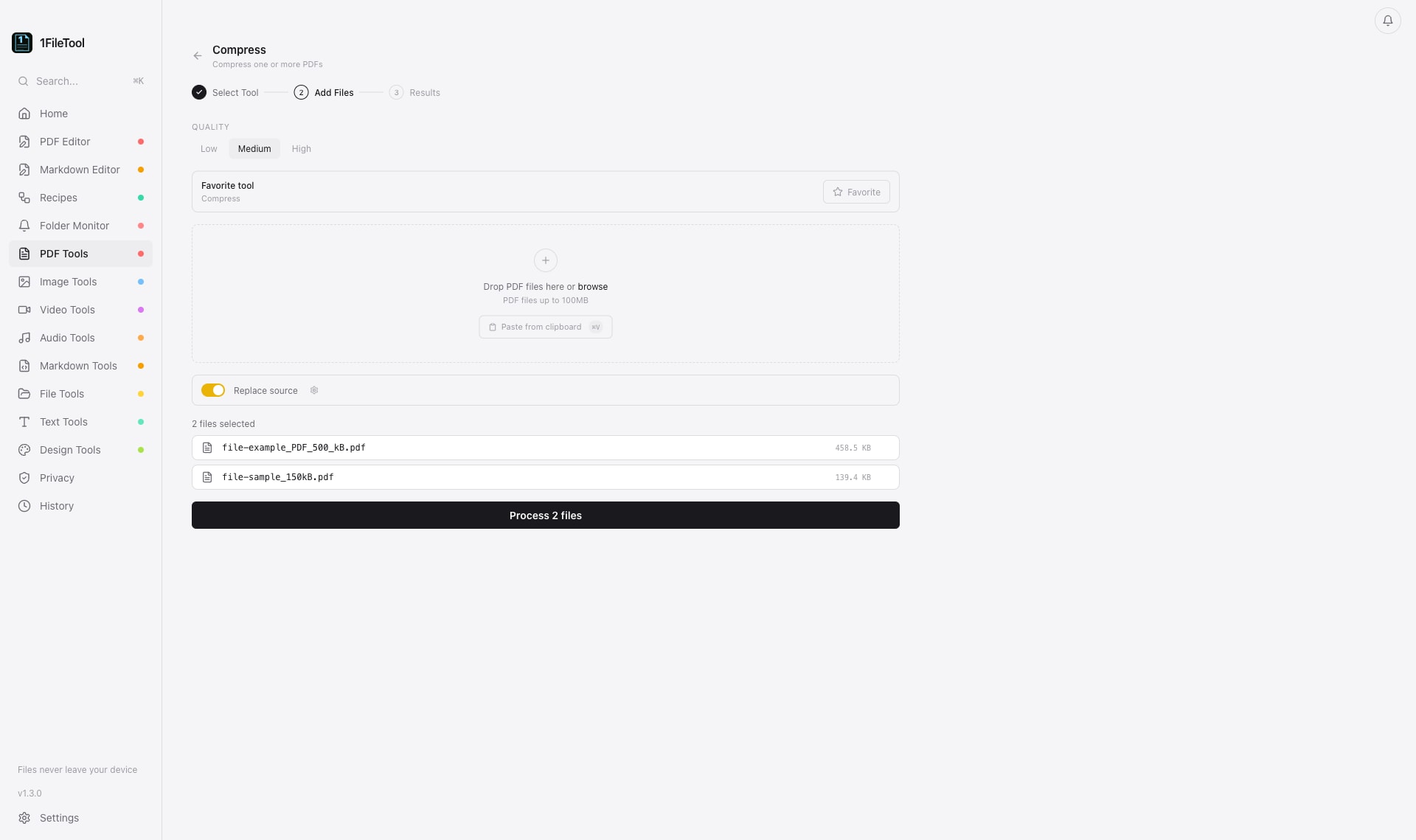
- Open the Compress tool — Launch 1FileTool and choose Compress under PDF Tools — or press ⌘/Ctrl+K and type "compress pdf".
- Drop one or more PDFs — Drag files in, paste from the clipboard, or select a whole batch. Every file is processed locally.
- Pick a quality level — Settings › General sets the compression level: High (JPEG q85, smallest quality loss), Medium (q65, the default) or Low (q40, smallest files).
- Process and check the result card — Each result shows the before/after size and the percentage saved. Files land in your output folder — by default ~/Documents/1FileTool.
Why Use 1FileTool Over Online Tools?
- 100% offline — Files never leave your computer. No uploads, ever.
- Pay once — One-time payment from $29. No monthly subscriptions.
- Instant results — Local processing is faster than uploading + server processing + downloading.
- No file size limits — Process files of any size, limited only by your disk space.
- GDPR compliant — No data collection means complete privacy compliance by design.
Formats
| Input | Output | Notes |
|---|---|---|
| Embedded images are recompressed as JPEG; the document stays a real, selectable-text PDF. |
Good to know
- PDF compression affects embedded images only — a text-only PDF will barely shrink.
- Replace source is ON by default and overwrites the original file with no backup. Turn it off in Settings › General to keep the original next to the compressed copy.
- The free plan processes 8 files per calendar day; every file written counts.
Tips
- Compress a photo-heavy scan or presentation export — that is where the biggest wins are.
- If the result is still too large for email, split the document with Split by Page first, then compress each part.
- Check whether images or text dominate before blaming the compressor: a page of selectable text is already tiny.
Frequently asked questions
Does compressing a PDF reduce quality?
Yes, but controllably. 1FileTool recompresses embedded images as JPEG at quality 85 (High), 65 (Medium) or 40 (Low). Text, vectors and structure are untouched, so pages still print and select cleanly.
Is my PDF uploaded anywhere?
No. Compression runs on your device using the bundled image engines. Nothing is sent to a server.
Why did my PDF barely shrink?
Compression only shrinks embedded images. A PDF that is mostly text or vector graphics is already compact, so there is little to reclaim.
Does it work on scans?
Yes — scans are usually one large image per page, which is exactly what the compressor is best at. To also get selectable text afterwards, run OCR on the compressed file.
Can I compress many PDFs at once?
Yes. Drop a whole batch; files process with a background task bar and a cancel button, and each result reports its own size saved.