View Photos and Play Any Video Without Leaving 1FileTool
1FileTool 1.13.0 adds Media Player: check a result, zoom a photo to the pixel, step through video frame by frame and play HEIC, AVI or WMV files without opening another app.
You compress a screen recording, and the result card says it went from 480 MB to 62 MB. Is the text in the terminal still readable? To find out, you click Reveal in Finder, double-click the file, wait for another app to open, scrub to the part with small text, then switch back to 1FileTool to try a different quality.
Photos are worse. A folder of HEIC files from an iPhone shows up as blank icons on many Windows machines. An old AVI or WMV from a camera or a client opens in nothing that came with your computer. Before you can decide what to do with a file, you have to find something that can open it.
What changed
1FileTool 1.13.0 adds Media Player, a viewer for photos and videos built into the app. You can now look at a file, check a result or grab a frame without opening a second app. That includes HEIC, TIFF, AVI and WMV files your computer may not open on its own.
How it works in practice
Open a folder and flip through it
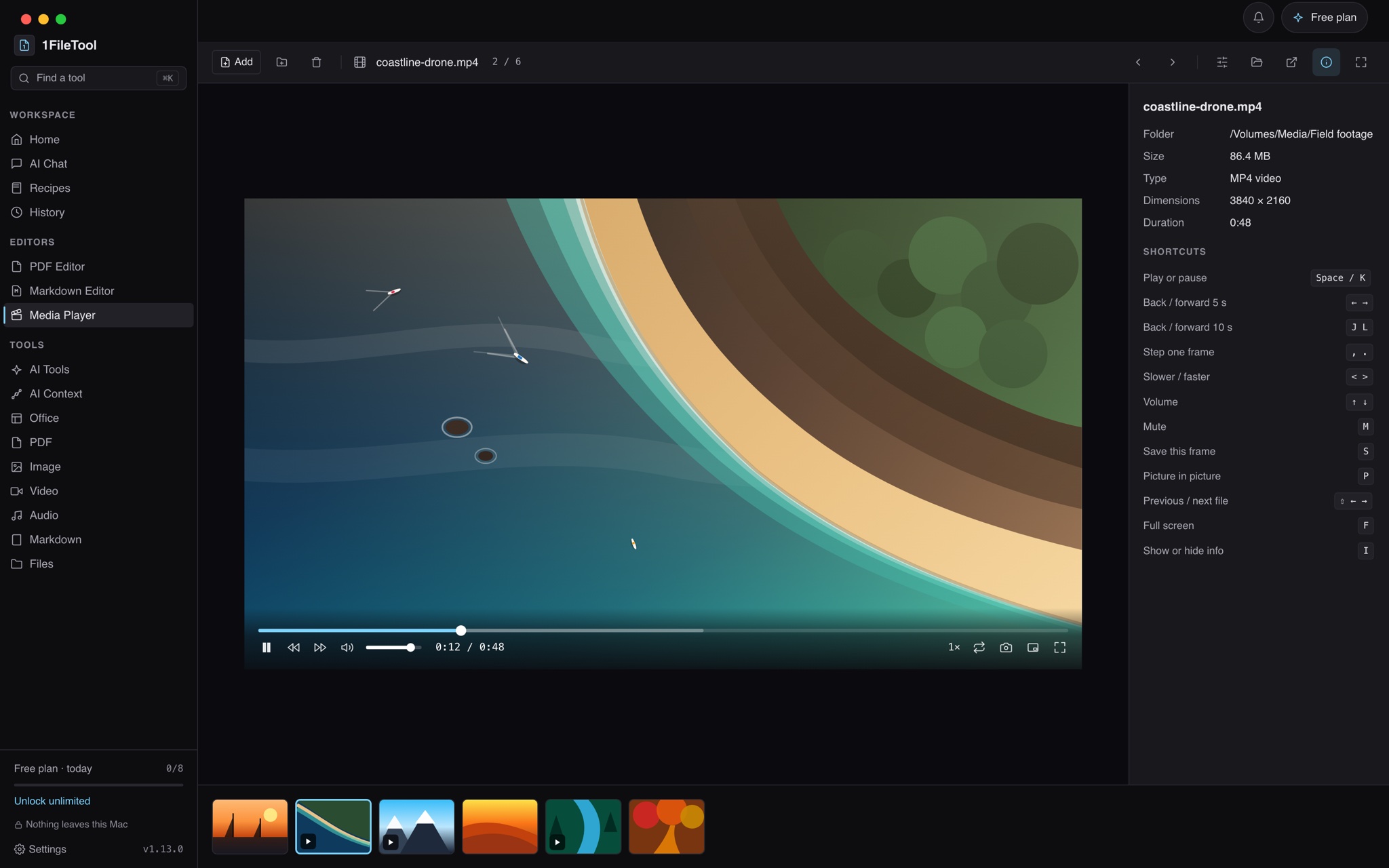
Media Player sits in the sidebar under Editors, next to the PDF and Markdown editors. You can also open it from the Tools menu, or type "media" into Find a tool. Press Add to pick files, use the folder button to add a whole folder, or drop files onto the window. A filmstrip of everything you added runs along the bottom.
Move through the list with the left and right arrow keys, or click a thumbnail. On a video the plain arrows skip 5 seconds instead, so hold Shift to change files. Home and End jump to the first and last file. Press I to open the info panel, which shows the file's folder, size, type, dimensions and duration, plus every keyboard shortcut, so you don't have to memorise them.
Check a result without losing your place
The more useful change is in the tools themselves. Tool file lists, finished results and History now have a View button. It opens the player over the page you are on. Look at the compressed video or the photo without its background, then press Esc and you are back on the tool with your files still selected, ready to try another setting.
The same goes for files you open from outside the app. When you use Open With 1FileTool on a photo in Finder or File Explorer, View is now the first option ("Zoom, rotate and flip through them"). For a video it is Play ("Watch it here, frame by frame if needed"). The conversion tools are still listed below it.
If what you see needs work, the Edit in tools button sends the current file straight to the Image or Video tools.
Zoom in to the pixel
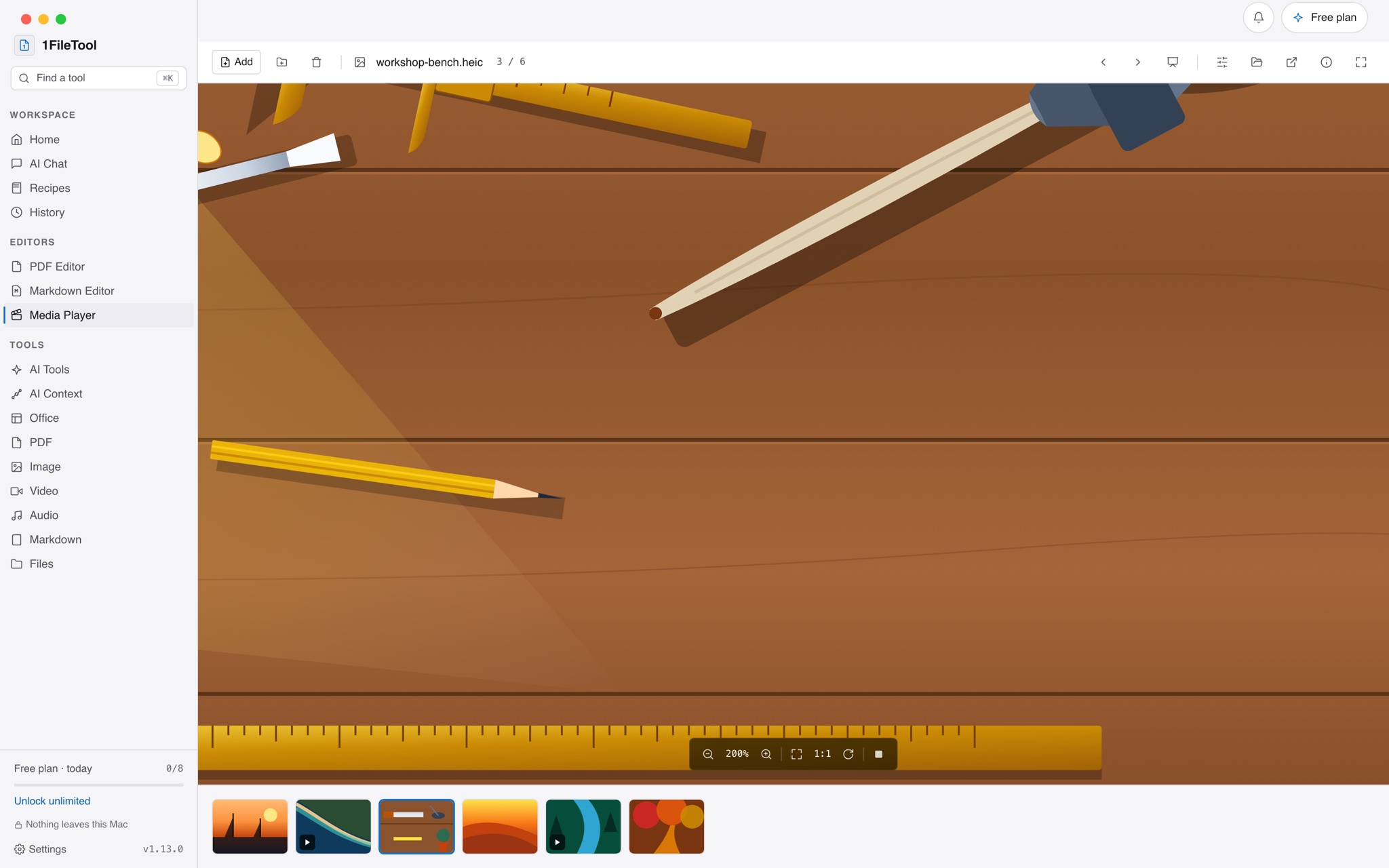
For photos, pinch on a trackpad or scroll with ⌘ (Ctrl on Windows and Linux) held to zoom into the spot under the pointer, then drag to pan. 0 fits the photo to the window and 1 shows it at actual size, which is the quickest way to tell whether a compressed JPEG has gone soft. R rotates the view without touching the file.
B cycles the background between dark, light and a checkerboard. The checkerboard shows exactly which parts of a PNG are transparent, which is what you want after running background removal on a batch of product shots. There is also a slideshow that shows each photo for four seconds and lets each video play to its end.
Video controls for checking footage
The video controls are meant for checking footage, not just watching it:
- Scrub the timeline, or skip 5 seconds with the arrow keys and 10 seconds with J and L.
- Step one frame at a time with , and . to find the exact moment something happens.
- Change speed from 0.25× to 2× with <** and **>, turn on loop, or pop the video out into picture in picture with P.
- Videos in the list play one after another, so a folder of clips plays as a playlist.
When you find the frame you want, press S or the camera button. Media Player saves that frame as a full-resolution PNG in your output folder, taken from the original file rather than from the screen. That beats taking a screenshot of a video window and cropping it. Saving a frame counts toward the free plan's daily limit like any other tool. Viewing and playing never do.
Files your computer won't open
Media Player shows JPG, PNG, GIF, WebP, AVIF, BMP and SVG directly. HEIC and TIFF photos are converted for display as you view them, so they open on Windows and Linux too. If what you actually need is JPEG copies to share, the HEIC to JPG tutorial covers that.
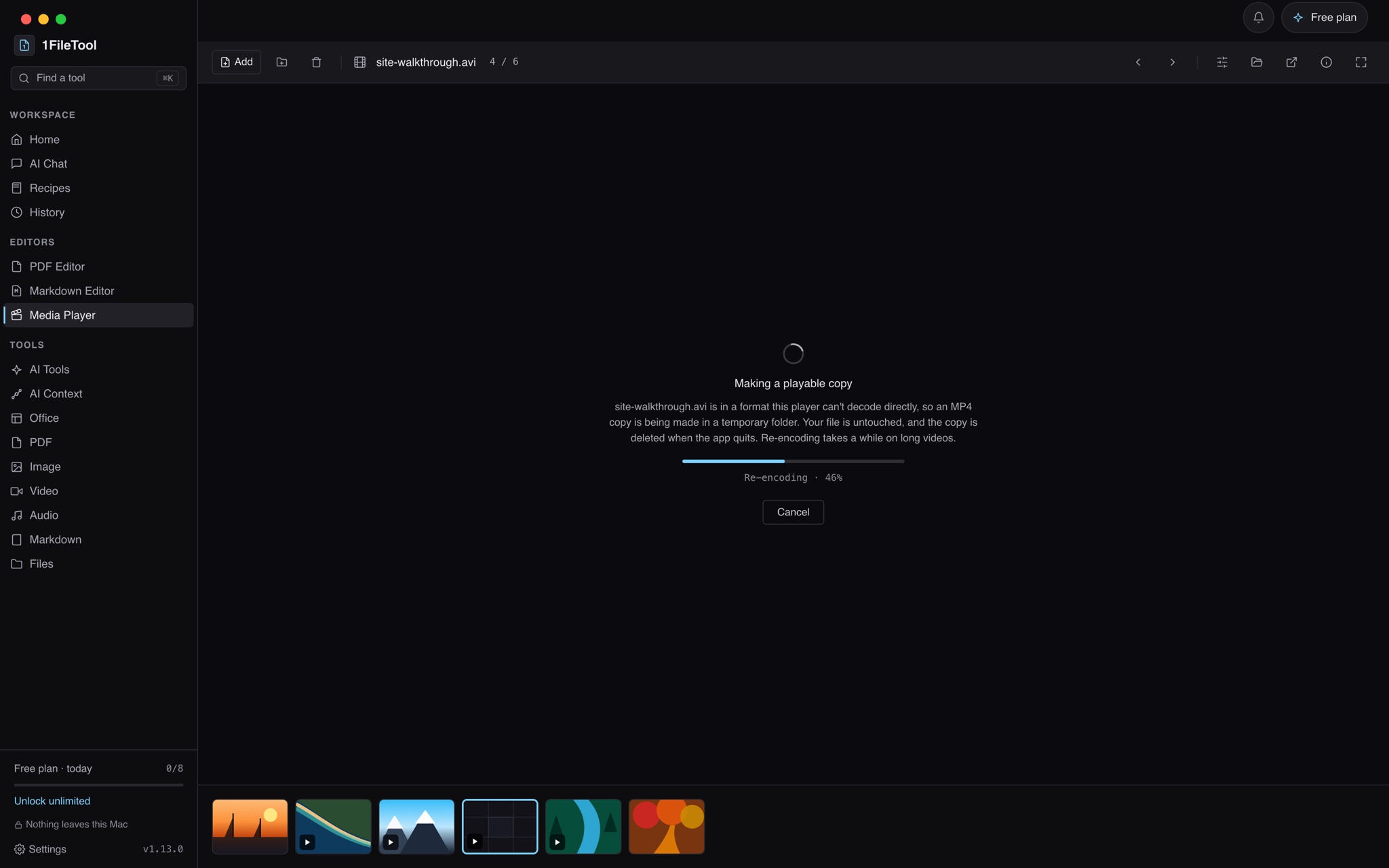
MP4, MOV, WebM and MKV play directly. AVI, WMV, FLV, MPEG, 3GP and MPEG-TS files (including camcorder .mts and .m2ts) get a playable copy instead. If the video and audio inside can go into an MP4 as they are, 1FileTool repackages them, which takes seconds. If they can't, it re-encodes the file, shows progress as it goes, and gives you a Cancel button. An MP4 that plays sound but no picture, which happens with some HEVC and 10-bit files, offers the same copy.
The copies go in a temporary folder on your computer and are deleted when you quit 1FileTool. Your original files are never changed, and nothing is uploaded anywhere.
Before vs After
| Task | Before 1.13.0 | With Media Player |
|---|---|---|
| Check a compressed video | Reveal in Finder, open another player, scrub, switch back | Press View on the result, then Esc |
| Look at HEIC photos on Windows | Install a HEIF extension or convert the photos first | Add the folder and use the arrow keys |
| Play an old AVI or WMV | Find and install a third-party player | It plays from a temporary MP4 copy |
| Grab a still from a clip | Pause, take a screenshot, crop it, lose resolution | Step to the frame and press S for a full-size PNG |
| See whether a cutout is clean | Open the PNG in an image editor | Press B for the checkerboard and zoom in |
Who benefits most
People who shrink video before sharing it. If you compress screen recordings for tickets or docs, you can now compare quality settings in a few keystrokes. The frame grab also gives you clean stills for the same docs, and the video to GIF tutorial covers the moving version.
Windows users with an iPhone. HEIC folders open like any other photos, so you can sort through them before deciding what to convert or share.
Anyone sent footage in an older format. Client archives, drone cards and camcorder dumps often arrive as AVI, WMV or MTS. You can check what is in them without installing anything new.
Try it
Download 1FileTool 1.13.0, or let the app update itself, then open Media Player from the sidebar and drop in a folder. Viewing is free and unlimited, so you can check every photo and video before you run a tool on it. If you would rather make videos than check them, 1VideoTool is the StoicSoft app built for that.
From across the StoicSoft network
Hand-curated reads on the same topic from sister sites in the StoicSoft family.
 1DevTool5 min read
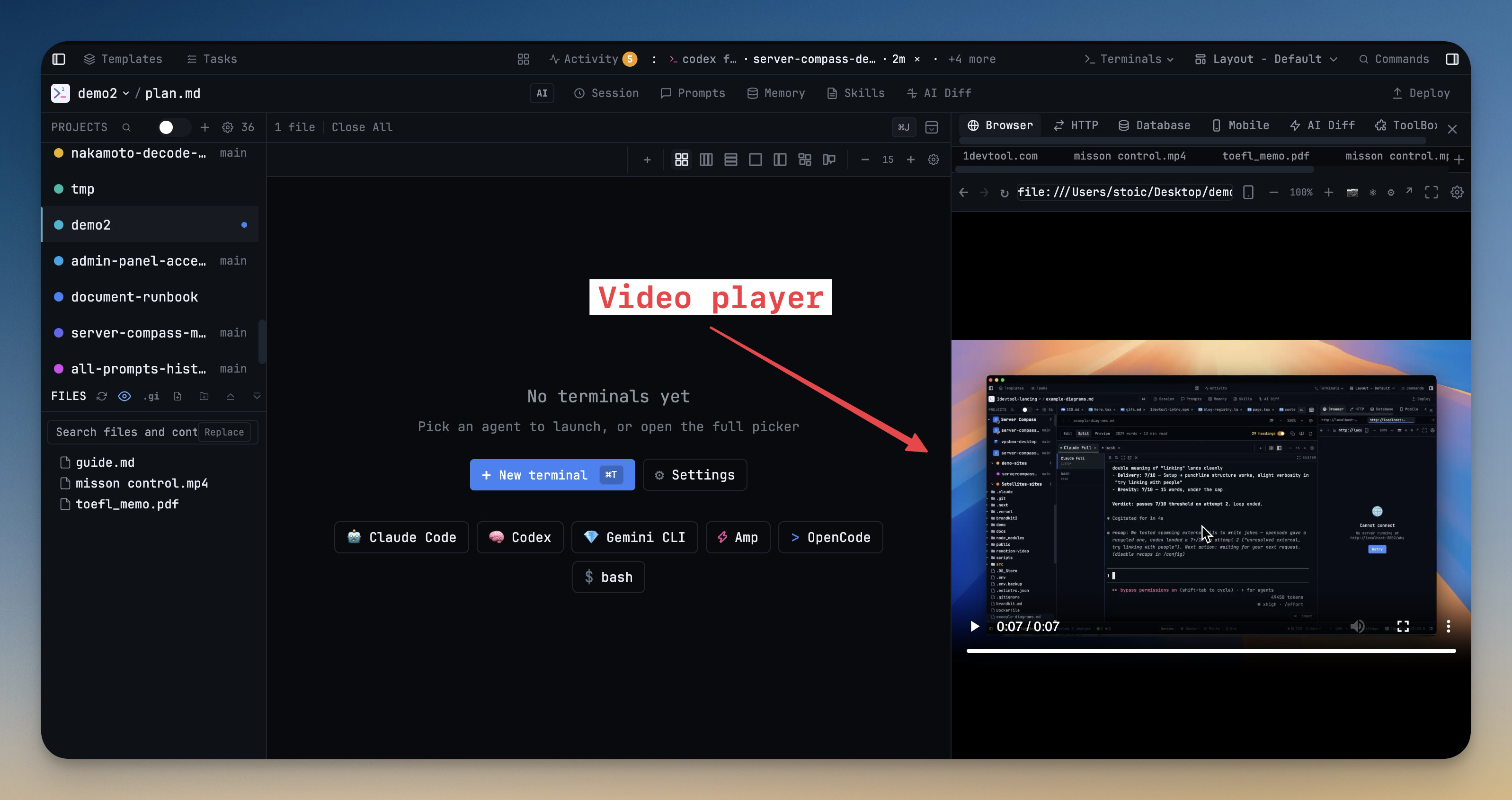
Preview PDFs, Videos, and Audio Without Leaving Your Editor
Click a PDF, video, or audio file in the file explorer and it renders in the browser panel — no separate app, no context switch.
Read on 1devtool.com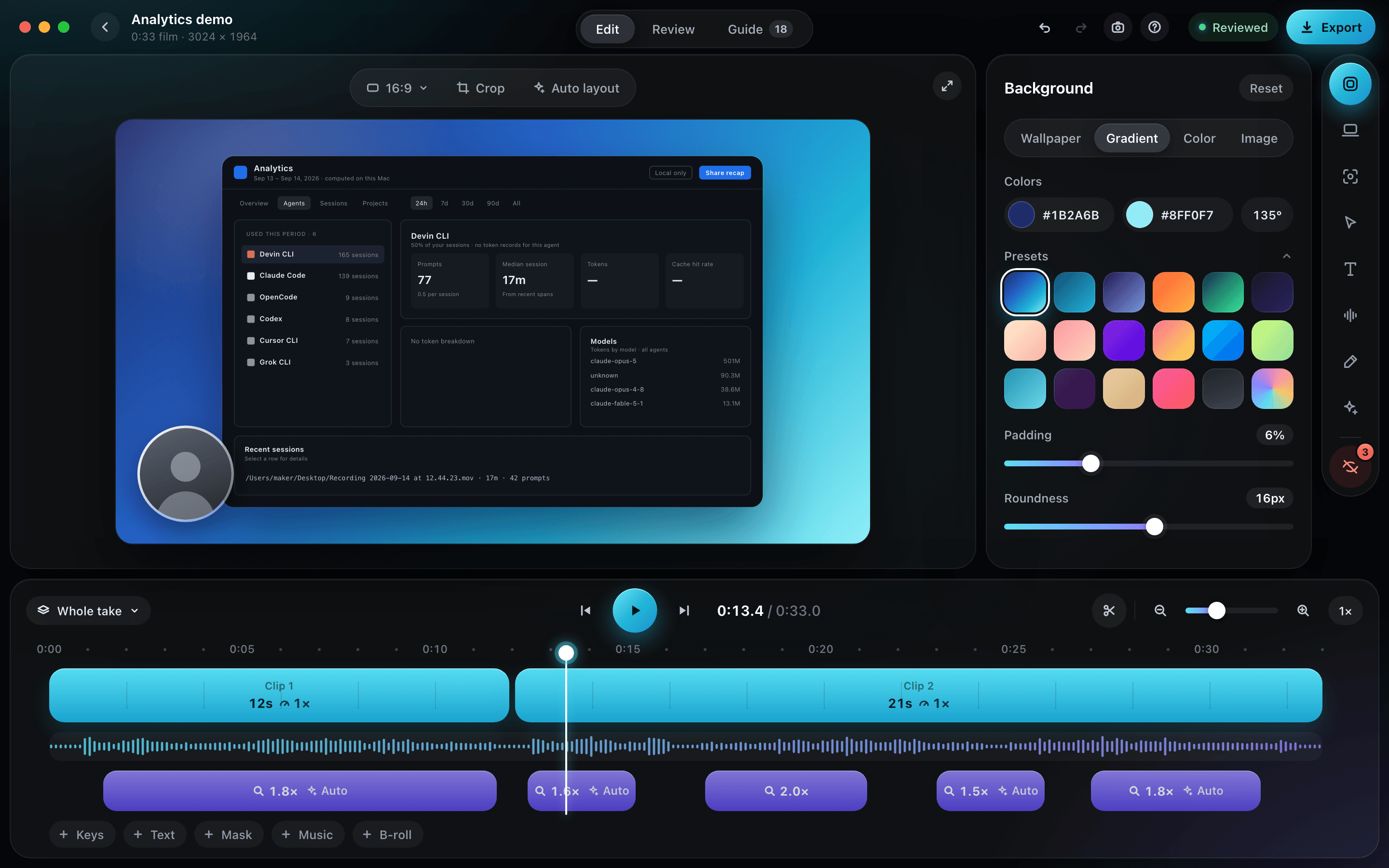 1ShowcaseTool8 min read
A calmer video editor: modes, nine panels and clips up to 24×
1ShowcaseTool v1.12.0 rebuilds the video editor around the work: Edit and Review modes, nine grouped panels, a timeline that only shows what your film contains — plus clip speed up to 24×, your own background image, and a mockup film on a single clip.
Read on 1showcasetool.com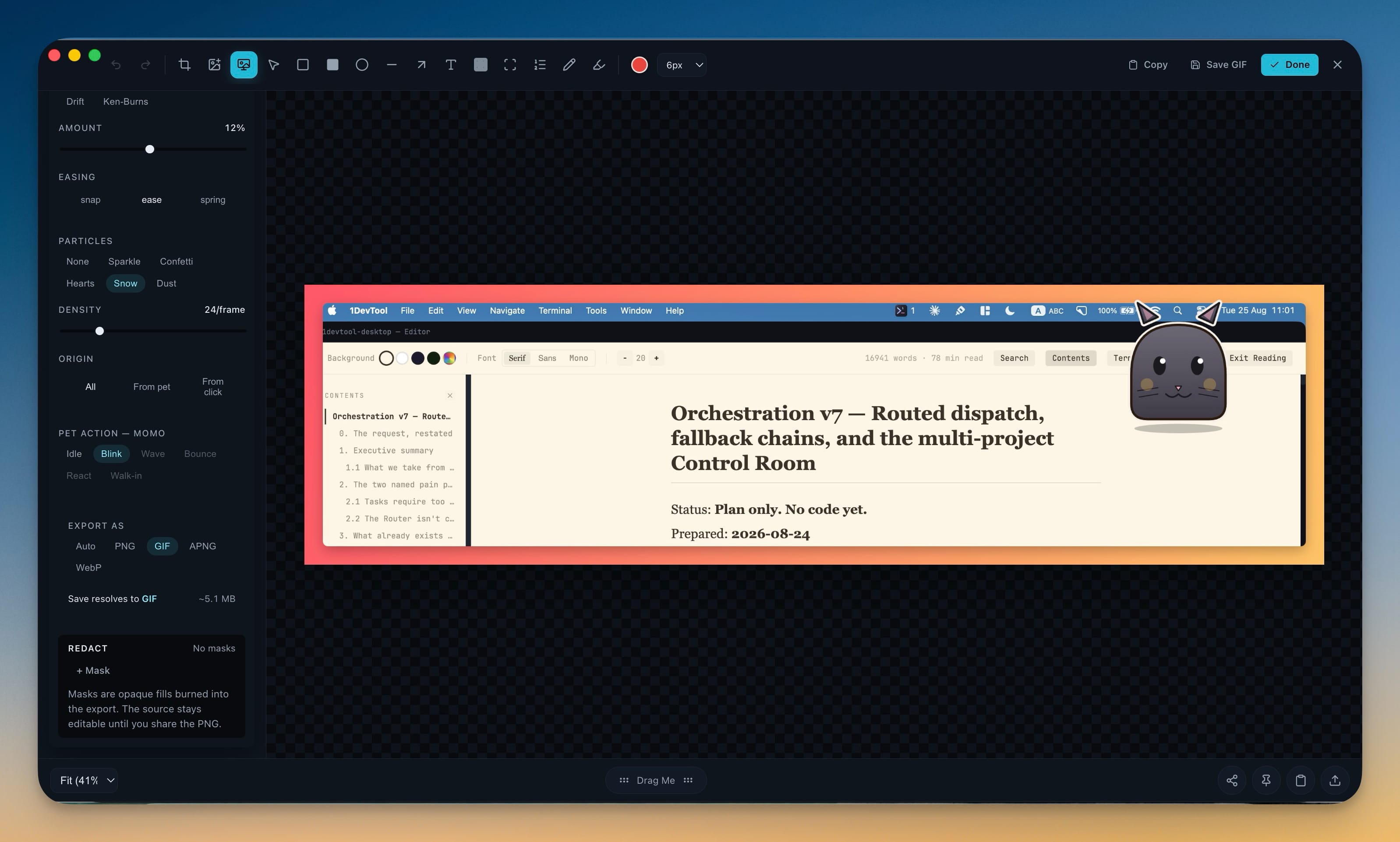 1ShowcaseTool7 min read
From raw capture to a shot worth sharing — v1.7.0 adds a Screenshot studio
Capture a window, display or region, drop it on a background inside a device frame, animate it and export a PNG, GIF or APNG — all in one place, all on your machine. Plus a waveform, pause and clap detection, and faster MP4 exports in the recording editor.
Read on 1showcasetool.com