All Tools / Image Tools / Compress
Compress
Compress one or more images
Try Compress Online
Real Browser ProcessingNo files selected
Original
Result
Processing happens locally in your browser. The desktop app adds more formats, better performance on very large files, and advanced automation.
Compress Images shrinks JPG, PNG, WebP and HEIC photos and graphics without leaving your device — for faster websites, smaller email attachments, and less disk use. Each result reports the exact size before and after, and the percentage saved.
In a real run on this build, three JPGs totalling 869,224 bytes came out at 299,449 bytes — about 66% saved per file at the default quality. If a file can't be made smaller without visible damage, the tool keeps the original rather than writing a worse file.
How To Use Compress Offline
- Open Compress — Under Image Tools, or search "compress" with ⌘/Ctrl+K.
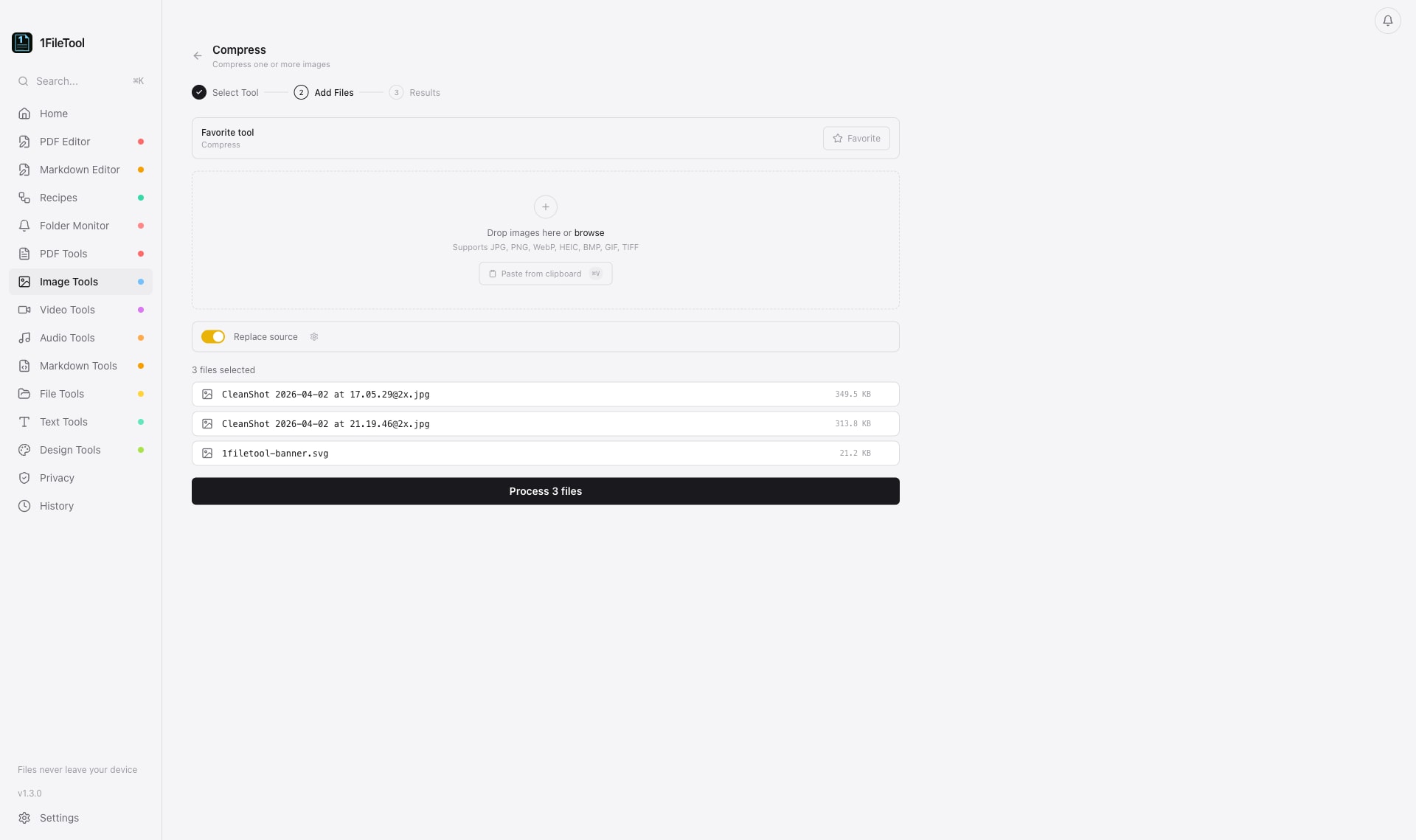
- Drop the images — Drag in a whole batch — JPG, PNG, WebP, even iPhone HEIC files. Paste works too.
- Pick quality — Set the compression level in Settings › General. The default quality of 80 is a strong size/quality balance.
- Read the results — Each file gets a result card showing before, after, and percent saved. Outputs land in ~/Documents/1FileTool.
Why Use 1FileTool Over Online Tools?
- 100% offline — Files never leave your computer. No uploads, ever.
- Pay once — One-time payment from $29. No monthly subscriptions.
- Instant results — Local processing is faster than uploading + server processing + downloading.
- No file size limits — Process files of any size, limited only by your disk space.
- GDPR compliant — No data collection means complete privacy compliance by design.
Formats
| Input | Output | Notes |
|---|---|---|
| .jpg .jpeg | .jpg | mozjpeg recompression — usually the biggest wins. |
| .png | .png | Lossless-safe recompression. |
| .webp | .webp | Re-encoded at the chosen quality. |
| .gif | .webp | Converts to animated WebP only when that's smaller. |
| .heic | .jpg/.webp | HEIC input decodes first, then compresses. |
Good to know
- If compressing would make a file worse, the tool keeps the original instead of writing a bigger file.
- Replace source is ON by default — it overwrites originals with no backup. Turn it off in Settings › General to keep both.
- The free plan processes 8 files per calendar day.
Tips
- Screenshots and photos compress the most; already-optimized web images may barely change.
- Pair with Resize when the image is far larger than needed — halving the pixels usually beats lowering quality.
- GIFs often shrink dramatically as animated WebP.
Frequently asked questions
How much smaller will my images get?
It depends on the source — in a verified run, three JPGs dropped ~66% total at default quality. Already-optimized images may shrink little; the tool is honest about it and reports the real numbers per file.
Does compression reduce image quality?
Slightly, at the quality you choose (default 80). The engine also refuses to write a result that is larger than the original.
Are my photos uploaded?
No — compression uses the bundled sharp/libvips engine entirely on your machine.
Can I compress a whole folder?
Yes — drop as many files as you like. A background task bar tracks progress and you can cancel mid-run.
Does it handle iPhone HEIC photos?
Yes — every image tool accepts HEIC input since v1.10.0. HEIC is read-only, so output is JPG or another writable format.