All Tools / PDF Tools / PDF to Word
PDF to Word
Preserve PDF layout in DOCX
Try PDF to Word Online
Real Browser ProcessingNo files selected
All PDF processing runs in-browser. Security tools use a local encrypted container format for password workflows.
PDF to Word turns a PDF into an editable .docx so you can fix text, reuse content, or hand the file to someone who lives in Word. It runs fully offline — the document never leaves your computer.
There are two honest modes. Visual mode (the default) preserves the layout exactly by embedding each page as an image inside the DOCX — perfect for contracts and forms that must look identical. Text mode extracts real, editable text from the PDF — best when you want to rewrite the content. For scans, Scanned PDF to Word runs OCR to recover the text.
How To Use PDF to Word Offline
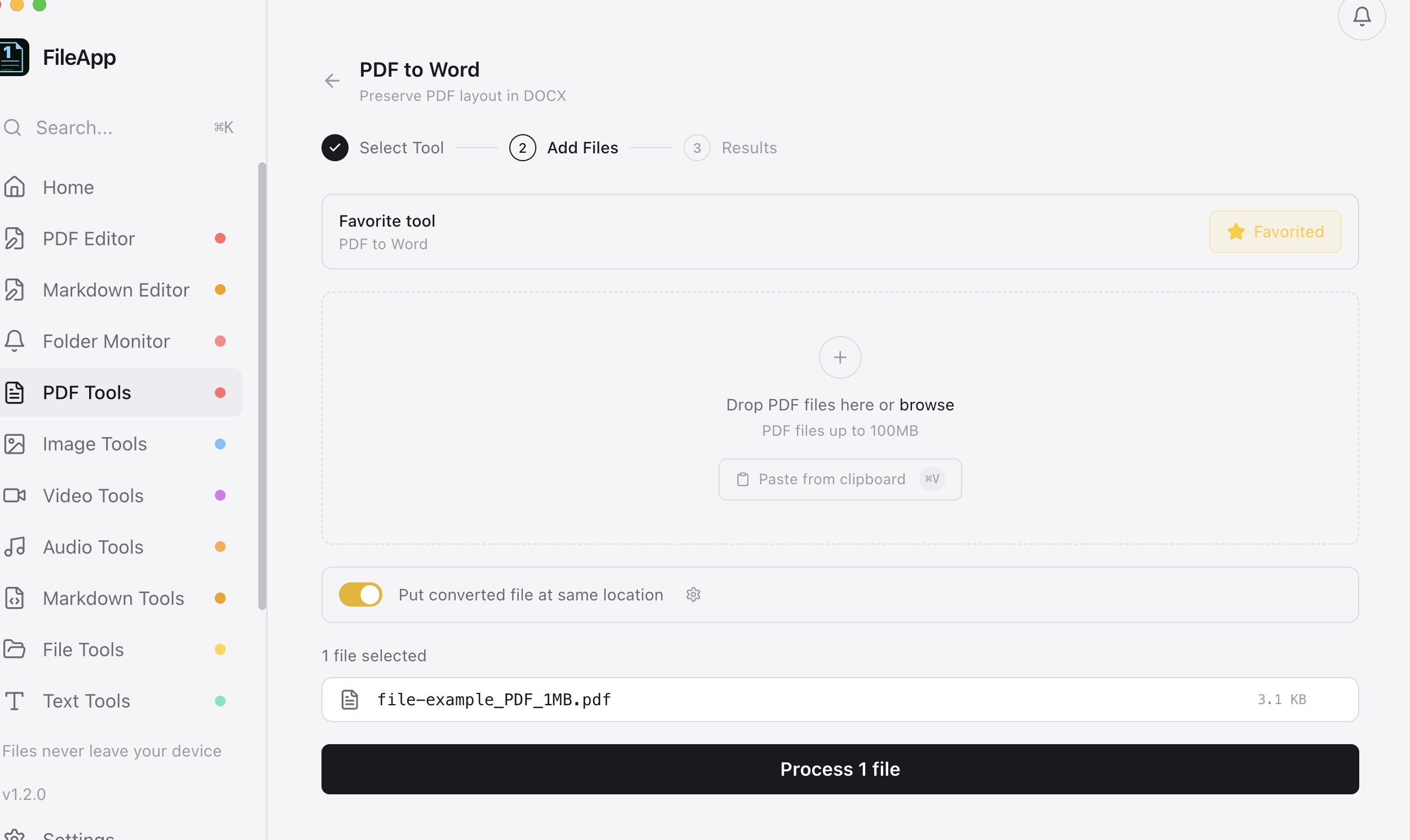
- Open PDF to Word — Find it under PDF Tools, or press ⌘/Ctrl+K and search "pdf to word".
- Drop your PDF — Drag the file in or paste it. Batch conversion of several PDFs is supported.
- Choose the mode — Visual keeps the exact look with page images; Text gives you editable paragraphs. Pick visual when fidelity matters, text when editing matters.
- Process and open the .docx — The result is saved to your output folder — ~/Documents/1FileTool unless you changed it — ready for Word, LibreOffice or Pages.
Why Use 1FileTool Over Online Tools?
- 100% offline — Files never leave your computer. No uploads, ever.
- Pay once — One-time payment from $29. No monthly subscriptions.
- Instant results — Local processing is faster than uploading + server processing + downloading.
- No file size limits — Process files of any size, limited only by your disk space.
- GDPR compliant — No data collection means complete privacy compliance by design.
Formats
| Input | Output | Notes |
|---|---|---|
| .docx | Visual mode embeds page images; Text mode writes extracted text. | |
| scanned .pdf | .docx | Use Scanned PDF to Word — it runs OCR (English) first. |
Good to know
- Replace source is ON by default — it overwrites originals with no backup. Turn it off in Settings › General to keep both.
- Visual mode embeds page images — the result looks identical but text is not editable.
- Text mode produces real editable text but does not reproduce complex layouts, columns or fonts.
- OCR is English-only — other languages will not be recognized correctly.
- The free plan processes 8 files per calendar day.
Tips
- For a contract or invoice that must look identical, choose Visual mode.
- For a report you want to rewrite, choose Text mode, then tidy the formatting in Word.
- For a photo of a document or a flat scan, use Scanned PDF to Word instead — it OCRs first.
Frequently asked questions
Will the formatting look exactly the same?
In Visual mode, yes — each page is embedded as a high-resolution image inside the DOCX. In Text mode you get editable text, but complex layouts, multi-column designs and fonts are simplified.
Can I edit the text after converting?
Choose Text mode for editable text. Visual mode keeps the page as an image, so you cannot edit the words — it is for fidelity, not editing.
Does it work offline?
Yes. Conversion happens entirely on your device with the bundled engines — no upload, no account, no server.
What about scanned PDFs?
Use the Scanned PDF to Word tool, which runs OCR (English) to recover text. Regular PDF to Word treats a scan as an image.
Can I convert many PDFs at once?
Yes — drop a batch. There is also a dedicated Batch PDF to Word tool for large sets.